
how to use Elementor Canva page full blank page
introduction
The Ultimate Tutorial for Elementor Canva Page: From Canva Design to Full Blank Page walks you through creating a completely custom WordPress page without theme limitations. Elementor is a powerful drag-and-drop page builder for WordPress that allows you to design pages visually, without writing any code, making it easy for beginners to create professional layouts from a full blank canvas.
How to Use Elementor Canva Page to Create a Full Blank Page Easily
Creating blank WordPress pages has recently become very straightforward using Canva and Elementor. Combining the capabilities of Elementor’s drag-and-drop Page Builder and Canva’s design capabilities allows for the creation of aesthetically pleasing web pages without any coding experience. In this tutorial, you will be guided step-by-step to use an Elementor-based webpage that has incorporated a Canva design to its maximum potential.
What is a Canva Page designed with Elementor?
An Elementor Canva page is a webpage created in Elementor that uses graphics, layouts and/or templates made with Canva. This technique enables you to maintain design congruity across all pages, create high-quality images and graphics, as well as create professional quality pages that appear polished.
Why You Should Use Elementor to Create Full Blank Pages
Elementor is one of the leading WordPress Page Builder, offering users the following:
- Unlimited Layout/Design Options – Start with nothing and complete the design and layout you envision.
- Drag and Drop Capabilities – Easily drag and drop content containers, widgets and images onto your page.
- Canva Design Import Capabilities – Easily import your Canva image files directly into your page.
Using an Elementor Canva page allows users to combine the User-Friendly Canvas with the powerful customization options in Elementor.
In order to import your Canva design into Elementor, you must first Optimize Your Canva Design for Web Use.
Optimizing Your Canva Design for Web Use
To optimize for web use, you need to set the correct dimensions and file format for your images.
- Dimension: Most websites have a width of 1920px for their web pages.
2. File Formats: The following formats are recommended for web use: PNG and JPEG for images; SVG for vector graphics.
3. Export High-Quality Images: Exporting high quality images will ensure that your graphic elements will look sharp and clear when resized.
4. Screen capture: Canva export page is a sample of an export page for Canva including recommended settings.
Importing Your Canva Design into Elementor (Step-by-Step Guide)
Follow the steps below to convert your Canva Design into a page in Elementor:
Step 1: Create a Blank Page in WordPress
To create a blank page in WordPress, navigate to the Pages menu and select Add New. Then click the Edit with Elementor button.
Step 2: Upload Your Canva Design
Next, use the upload feature to upload your Canva design. You can either drag and drop the file into the section in Elementor where you want to place the design, or you can upload it as a background image for a section.
Step 3: Setup Your Layout
After uploading your design, you can modify the layout settings using Elementor’s padding, margin, and alignment features. Make adjustments until you’re satisfied with how your design appears within the section.
Step 4: Add Interactivity
You may also want to add interaction to your page. You can add buttons, text, and other widgets on top of your Canva design using Elementor Widgets.
Challenges & Solutions
In creating your Elementor Canva page, you may have experienced the following: image quality drops – export images at a higher resolution than what is shown on the Canva site. Responsive issues – use Elementor’s mobile/tablet view tools to adjust your layout accordingly and fix any issues that may arise with responsive layouts. Alignment – use the line guides and spacing functions in Elementor to make sure everything is aligned correctly.

Full Blank Page Design Tips
More is less – your design should have simple lines to provide for better usability.
Using consistent fonts and colours – make sure to use your brand colour palette and branding typography.
Step-by-Step Guide to Building a Full Blank Page with Elementor Canva Page
If you want to have complete creative control over your website design without the hinderance of any of your theme’s design features like headers or footers then creating a Completely Blank Page using Elementor is critical. This tutorial will show you Step-By-Step how to create an Elementor Canva Page.
What is an Elementor Canva Page?
The Elementor Canva Page removes all theme features leaving you with a Total Empty Page, designed to allow you Full Flexibility when designing landing, sales, custom homepage or one page websites. Canva lets you have Full Design Control by using the Drag-and-Drop editor in Elementor.
Step 1: Create a New Page in WordPress
- Log in to the WordPress Dashboard
- Click on Pages → Add New
- Enter a Title for your Page (ex: “Landing Page”)
Don’t put any Content in your Page yet!
Step 2: Set Your Page Template To Elementor Canvas
- In the Right-Hand Sidebar, Look for Page Attributes
- Click on the Template Dropdown Arrow
- Select Elementor Canvas.
This removes all of your theme design features.
Step 3: Open the Elementor Editor
- To begin using Elementor, click the “Edit with Elementor” button.
2. You must wait until the Elementor editor loads.
You’ll then be taken to a completely blank page, without any distractions.
Step 4: Set Up Page Settings for Full Width
- Click on the “Settings” (gear icon) in the bottom-left corner.
2. Next, select “Elementor Canvas” from the Page Layout setting (if this has not already been selected).
3. If you are using the default settings, change the “Padding” to 0.
This will make it possible to create a full-width design.
Step 5: Begin Creating Your Layout
After configuring your page settings, you can now begin adding the design elements to your page.
- Add a new section to your page by clicking on the “+” sign.
2. Select the number of columns you would like to use in your section layout.
3. Next, you can drag and drop any of the built-in widgets (Heading, Image, Button, Video, etc.) into the columns you’ve created.
For best results, building a page layout one section at a time gives greater control over the overall appearance of your designed page.
Step 6: Optimize for Responsive Web Design
- To do that, use the Responsive Mode Toggle Icons (Desktop, Tablet, Mobile).
2. Once you have the layout set up for each responsive mode, adjust all of the spacing, font sizes, and alignment to suit those devices.
3. Also, if necessary, hide or show design elements based on the responsive layout mode.
It is imperative to optimize for responsive design since most websites today are designed to look good on all types of devices.
Step Seven: Preview and Launch
- Utilize the preview option in Elementor to test the functionality of your web page.
2. Make any necessary adjustments prior to Launching.
3. After making final adjustments to your page, press Launch.
Your newly created Full Blank Page using Elementor Canvas is now live!
Pros of Utilizing an Elementor Canvas Page
By Following this Step-By-Step Guide, You Will Be Able to Create:
- Landing Pages with High Conversion Rates.
- Funnel Pages. (pages created to work as part of a marketing funnel to promote and sell products or services).
- Customized Sales Pages:
- Minimalistic Styled Layouts.
This method is very beneficial for marketers and designers, as well as businesses that are focused on achieving maximum Conversions.
Create a Full Blank Page Fast Using Elementor Canva Page – Beginner’s Guide
If you don’t want to create a WordPress page with headers, footers, or other elements related to their theme, the easiest way to do so is by using an Elementor Canvas Page. This guide explains how to create a Full Blank Page Using Elementor Canva Page quickly, even for beginners, in step-by-step format.
What is an Elementor Canvas Page?
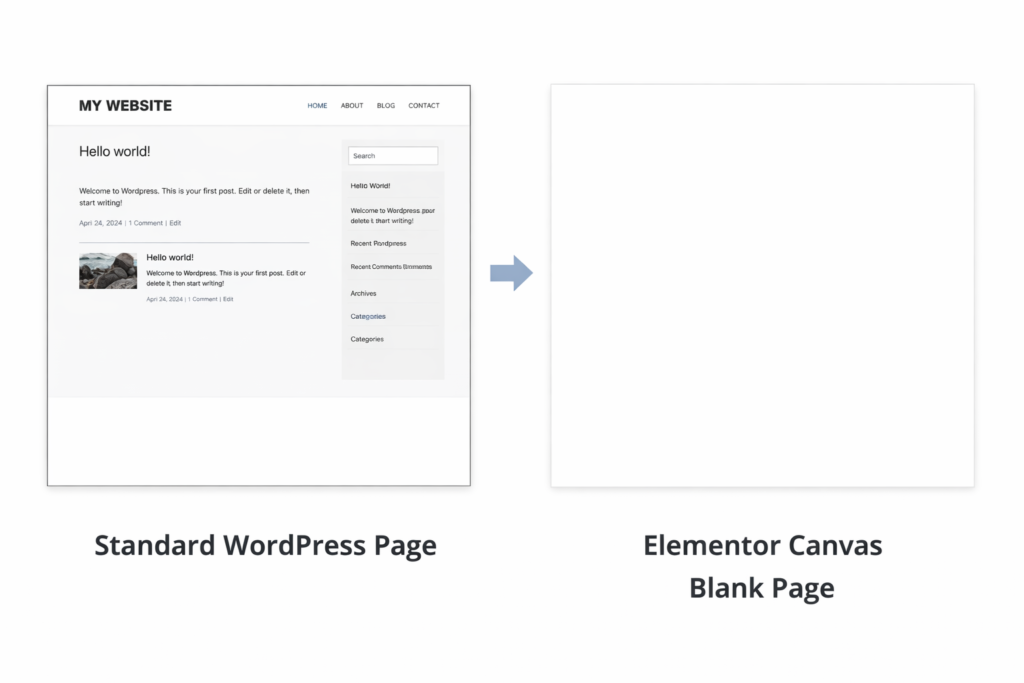
Elementor Canva Pages enable you to design on a completely blank page without any of the elements from your theme. You use Elementor’s drag and drop editor to design your page(s) however you wish.
The most common use cases for Elementor Canvas Pages include:
- Landing Pages
- Sales Pages
- One-Page Websites
- Custom Marketing Pages
Step 1: Create A New Page Within WordPress
- Log into your WordPress dashboard.
- Click on the “Pages” menu item, then click on “Add New.”
- Give your page a title (e.g., “Blank Landing Page”).
Don’t add any content to your page yet.
Step 2: Set the Page Template to Elementor Canvas
- Review the right-hand side of the screen.
- Find Page Attributes.
- Select the Template drop-down.
- Select Elementor Canvas from the options.
After this process is complete, your theme’s header and footer will be automatically removed from your new canvas page.
Step 3: Open Your New Page Using Elementor
- Click on the ‘Edit with Elementor’ button.
- Wait for the editor to finish loading.
Your screen will now feature a completely blank page ready for you to design.
Step 4: Change the Page Settings to Allow for a True Blank Layout
- Select the Settings (cog icon) located at the lower-left corner.
- Ensure that Page Layout is set to Elementor Canvas.
- Set any Padding and Margins as 0, if necessary.
This will allow for the use of a full-width design.
Step 5: Build Your Page Quickly Using Elementor Widgets
To begin building your page:
- Click the ‘+’ icon to create a section.
- Select a column structure.
- Drag a widget into the new section, such as a Heading, Image, Button, or Text.
With the visual editor, you can create your entire web page in minutes.
Step 6: Verify Your Page on Mobile and Tablet Devices
- Use Responsive Mode for All Devices
2. Modify Font Size and Space on Mobile Devices
3. Hide Items on Mobile Devices if Necessary
At this step you want to make sure that your page appears properly on all types of devices.
Step 7: Check a Pre-View and Publish Your Page
- To review your page design, click the Preview button.
2. Make any final changes as needed.
3, Then click the Publish button.
Now your Elementor Canvas Page that was previously Blank is Now Active/Live
When to Utilize the Elementor Canvas Page:
In using this Beginner’s Guide for Creating a Full Blank Page Using Elementor Canvas, the Elementor Canvas is appropriate if you desire the following:
- A Layout with Limited Visual Distractions
- A Lead-Generation Page that is Designed to Convert
- A Chance to Have Complete Artistic Freedom Without the Limits of Your Theme.
The Ultimate Tutorial for Elementor Canva Page: From Canva Design to Full Blank Page
One of the greatest features of Elementor is the ability to create custom pages without the limitations of the theme in use. This The Ultimate Tutorial for Elementor Canva Page: Whole Blank Page, goes over how to start from a completely blank layout, using a Canva inspired design idea to create a complete working page in Elementor.
What is an Elementor Canvas Page?
An Elementor Canvas Page is a page template that does not include the header and footer of your WordPress theme or any sidebar widgets in the main content area. An Elementor Canvas Page gives you a clean, simple layout to build your page any way you like, using Elementor.
Why would I want to use a Canva design with Elementor?
When starting to vertically plan a layout, a lot of beginners create their designs with Canva because of the ease of use and visual nature of the tool. The designs created with Canva can easily be replicated with sections, columns, and widgets within Elementor.
Three benefits of going this route:
- Layout Planning can be Faster: You will have a more structured visual layout that will help you quickly build the page needed for your website.
- There is a Clear Visual Structure: The version of the Canva design you created is identical to the version of that design you will build within Elementor.
- You Don’t Have to Guess on the Design. The Canva design image is a great way to replicate your Canva images with Elementor.

Step 1: Starting the Process to Add a New Page
- Log into your WordPress account.
2. Select Add New at the top of the Page’s screen.
3. Enter “New Page” as the Title of your new page.
Skip the Content section.
Step 2: Selecting the Template for your new Page
- Go to the right side of your page to locate the Page Attributes section.
2. From the drop-down menu, select Elementor Canvas as the Template.
The Theme Elements will now be removed from your pages.
Step 3: Using the Elementor Page Builder
- Click on Edit with Elementor tab.
2. Wait for the Elementor Page Builder to finish loading.
Your new page will appear as a blank white space.
Step 4: Designing your Page based on your Canva Design
If you have already completed your design on Canva, then use it as a reference to build your new page in Elementor.
- Identify the Sections of your page (Hero, Features, CTA, etc.)
- Determine how many Columns will be needed within each Section.
- Record the Font Sizes, Colors, and Spacing for the font in each section, this will help you in the rebuilding process.
step 5: Create Your Page One Section at a Time
- To create a new section, click on the + button.
2. Select from various column layouts.
3. Drag and drop widgets (such as images, headings, text, buttons).
4. Customize colors and typography in keeping with your Canva design.
You’ll have greater flexibility when building each section individually.
step 6: Create a Fully Blank Page Layout with Your Own Design in Elementor
- Open the page settings by clicking on the gear icon.
2. In page layout, select Elementor Canvas.
3. Change page margins and padding to 0 where applicable.
This allows you to create an accurate edge-to-edge design with your own graphic elements.
Image example: Page settings menu for Elementor.
step 7: Optimize for smart phone and tablet devices
- Use Elementor’s Responsive Mode to view how your design will appear on mobile and tablet devices.
2. Make any necessary adjustments to the font size and spacing for mobile devices.
3. If necessary, adjust the order of your elements and/or hide elements.
This ensures that your overall design maintains a consistent look and feel across all devices.
Step 8: Review and Publish Your Page
- Previewing will allow you to assess your layout
2. Make final changes to your layout before going live
3. Once finished, click the Publish button on your Canva File.
Congratulations! Your new Elementor Canva Page is now available online!

When utilizing the Elementor Canva Page concept, it is essential to understand when this concept will be applicable.
The Ultimate Tutorial of Building with Elementor: From Canva Layout to Fully Customizable Elementor Layout is best used when:
- You want to design without restrictions.
- You would like a design that has no distractions, and your content will show up correctly.
- Your landing pages will be pixel perfect.
- You want your designs from Canva on your WordPress site.
Conclusion
The Elementor Canva template allows you to rapidly convert your basic concept design (or an entire mockup created within the Adobe application) into your personalized WordPress page without being restricted by the limitations of themes. You will have total control over the alignment of elements throughout each section of your page, as well as the distance between them and the overall form of that element.
The use of the Canva template speeds up your workflow and allows for greater precision in constructing designs, regardless of whether you begin with a rough concept or create directly in the Page Builder. These templates are ideal for creating landing pages and sales pages, along with any other types of page formats where a header or footer would distract from the overall theme of the page.






One Comment