
how to see what card is linked to app store 2026
introduction
The card linked to App Store is the payment method Apple uses for app purchases, subscriptions, and in-app charges. If you need to confirm which card is being billed or want to update your payment details, it’s important to know where to look. This guide will walk you through the simple steps to view, change, or remove the card linked to App Store on your Apple devices.
How to See What Card Is Linked to App Store (Quick & Easy Guide)
If you need to identify what payment methods Apple has attached to your account for purchases, subscriptions, and in-app purchases, follow this guide for instructions on viewing what card(s) you have connected to your App Store, with minimal effort and time on your part. Regardless of how you need to check—either out of curiosity about a potential payment problem, or to determine what your current payment method is to update billing information—the procedures for finding out are straightforward across any of your Apple devices.
How to See Which Credit Card Is Linked to App Store on iPhone or iPad
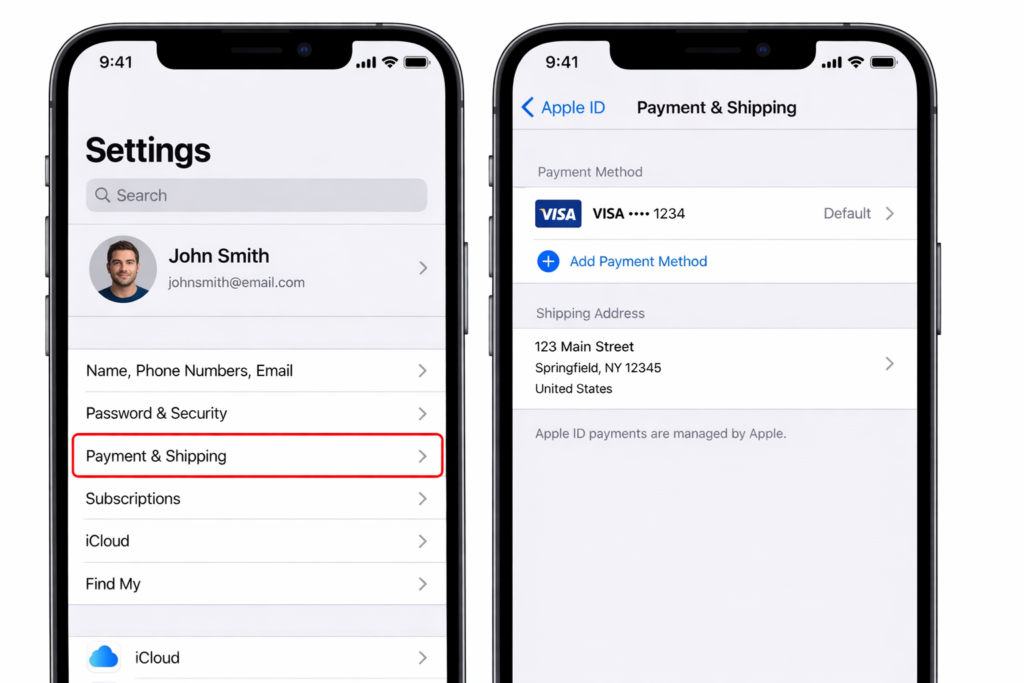
The quickest way to verify your App Store payment card is using Settings on your device. Follow these steps:
- Open Settings.
- Tap your profile name at top of screen.
- Tap Payment & Shipping.
- Authenticate yourself with Face ID, Touch ID, or your passcode.
- Review all cards or payment methods that are linked.
Your primary App Store payment card will show at the top of the list. Should there be additional options for making payments, Apple will charge those as well—in the order that is shown in the list.
How to See or Change Credit Card Associated with App Store on a Mac.
If you have a Mac, you will able to view your App Store payment options too, using these steps:
- Open the App Store.
- Click your name/profile at the top of the window.
- Select Account Settings.
- If prompted, enter your password via Touch ID or by typing it manually.
- Review your payment method(s) located in the Payment Information area; including the type of card(s) being used.
See What Card Is Linked to App Store Online
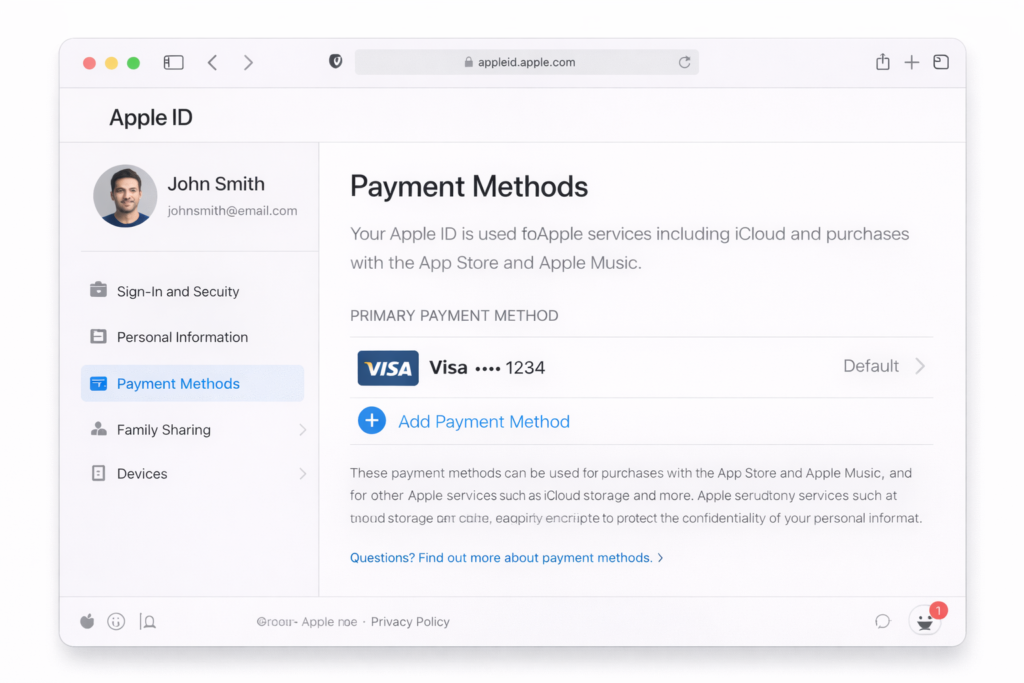
You can get information about the card you are using with Apple through a web browser.
The following steps will help to find out what card you have linked with your Apple ID:
- Go to the link: appleid.apple.com
- Log in with your Apple ID
- Select “Payment Methods”
- Find the card that is linked to your App Store account
Using a web browser is also another way to check your Apple ID linked credit card in the situation that you do not have access to your Apple device.
What If There is No Card?
If there is no card saved in your payment methods, then you may find options such as:
- Your Apple Account balance
- Gift card Balance
- None (possible in certain locations)
If you have no active payment method, you may have issues making purchases until you add a valid form of payment.
Why You Should Know What Card is Linked to App Store
By understanding how to find out which card is linked to your App Store you can:
- Prevent Failed Payments
- Manage your subscriptions
- Change Expired Credit Cards
- Prevent Unsolicited Charges
This is especially useful if multiple people are using one Apple ID or if you have switched banks recently.
Card Linked to App Store: How to Check Your Payment Method Step by Step
If you’re not sure about what card is currently being used for Apple purchases, this guide is for you. It will provide easy and fast guidelines on how to check the card linked to your App Store. Knowing your payment method can help you avoid failed payments, manage your subscriptions, and help you avoid surprise charges.
What Does It Mean When Someone Says “Card Linked to App Store”?
The “card linked to” the App Store is Apple’s default payment method used for:
- App Purchases & Game Purchases
- In-App Purchases
- Subscription (Apple Music, iCloud+, Apps, etc.)
Apple might have multiple payment methods for you; however, it will first attempt to charge your primary payment method.
How To Check A Card Linked To The App Store From An iPhone Or iPad
The method described below is the most commonly-used and fastest method.
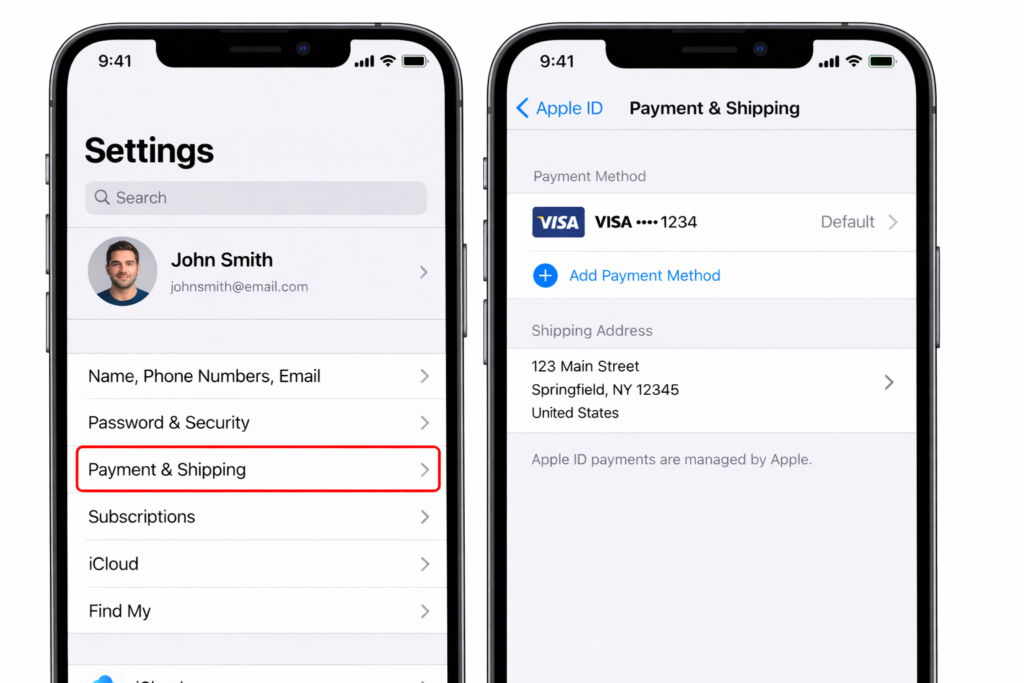
Step-By-Step Instructions To Check The Card Linked To The App Store.
- Open The Settings App.
- Tap Your Apple ID Name At The Top.
- Tap Payment And Shipping.
- Authenticate Using Face ID, Touch ID Or Passcode.
- The Card Linked To Your App Store Account Is Shown. The Active Card Will Be At The Top And Display The Card Type (i.e. ) And The Last Four Digits Of The Card.
How to View Your App Store’s Payment Method from Your Mac
You can also check which card is linked to your App Store account through macOS.
Here’s how:
- Launch the App Store.
- Tap your name or profile picture in the top right corner.
- Select Account Settings.
- You may need to log in.
- Find the Payment Information section.
- The Payment Information will display which card is used in connection to your App Store account along with alternate payment options.
How to View Your App Store’s Payment Method from a Web Browser
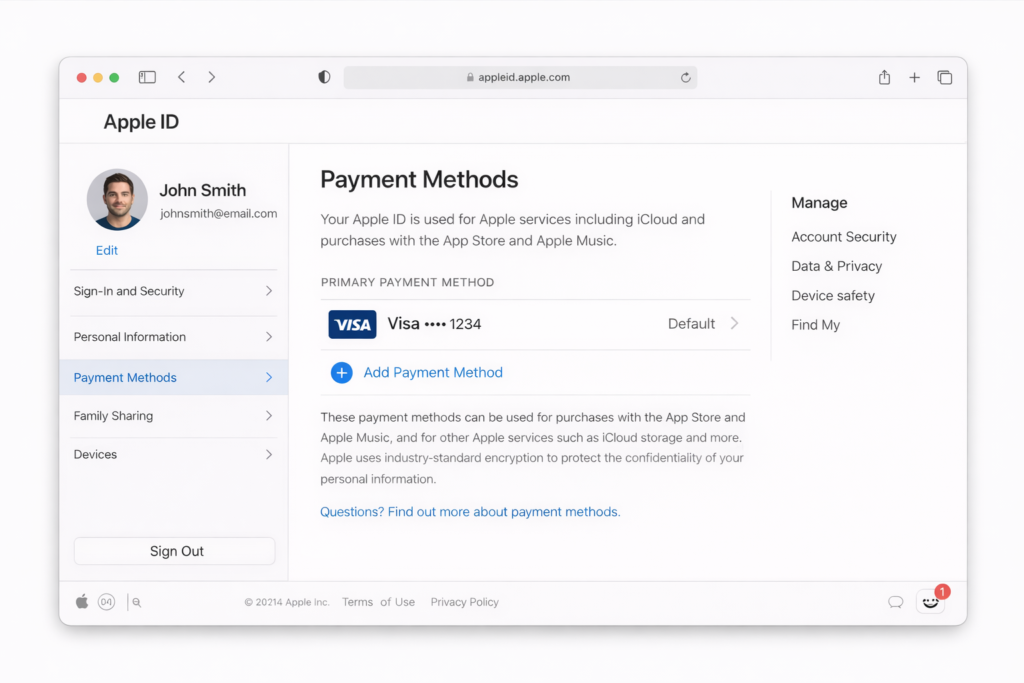
If you don’t have access to your Apple device, you can still check via a web browser.
Here’s how:
- Go to appleid.apple.com.
- Log in with your Apple ID.
- Select Payment Methods.
- View your App Store Payment Information.
This method works from any internet device, including computers and Android devices.
What If You Don’t See A Payment Method Linked?
If there is no payment method linked to your App Store account, you will see a collection of any Apple Account Balance or Gift Card balances, as well as the words “None” depending on your country/region.
Without an active card linked to your account, any subscriptions or new purchases will be unsuccessful.
The Importance of periodically checking the Card Associated with your App Store
Checking your form of payment periodically ensures that you will be able to:
- Avoid any interruptions on your subscriptions
- Update any expired or new card information
- Manage multiple people’s Apple IDs under each other
- Be able to prevent any fraudulent transactions on your account
Checking takes less than one minute and can easily save an individual time in the future.
How to Check the Card Linked to App Store on iPhone, iPad, or Mac
To see what payment option is currently attached to the App Store you must check your Apple ID on your iPhone, iPad or Mac. This is important for managing subscriptions, fixing issues with payments, or preventing any random charges.
The tutorial will guide you through each device individually with a step by step process.
What Does “Card Linked to App Store” Mean?
A card linked to the App Store is simply the primary payment method used for your Apple ID to purchase items from the App Store such as:
- App purchases
- In-app purchases
- Subscriptions (music, storage, apps, games)
If there are multiple payment methods on your account, Apple will attempt all of them in the order they are set up (starting with the primary card).
How to Check Card Linked to App Store from iPhone/iPad
This is the most common way that users will view their payment method.
Step by Step Directions
- Open the Settings app
2. Select your Apple ID name on the top
3. Select Payment and Shipping
4. Verify with either Face ID, Touch ID or your passcode
5. Next you will find out which card is linked to the App Store
You will be able to see both the Type and last four digits of the card that you currently are using for the App store.
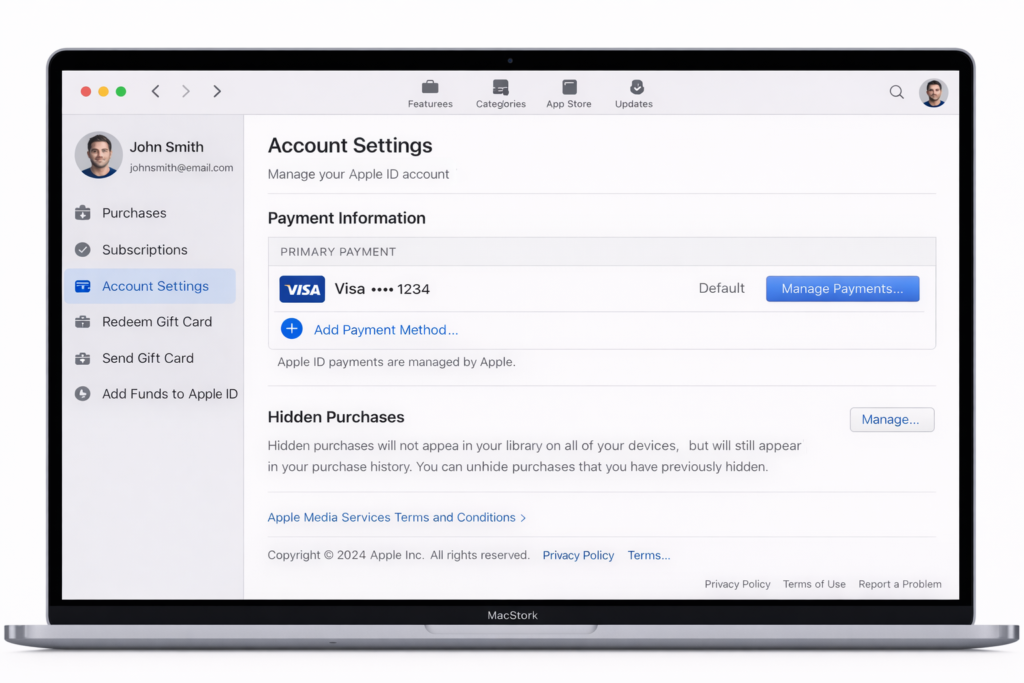
How to Check the Card Linked to App Store on Mac
You can also verify your App Store payment method within Mac.
Steps for Doing It
1) Launch the App Store.
2) Select your profile name or profile icon.
3) Click on Account Settings.
4) If required, enter your user name and password.
5) Scroll down until you find Payment Information.
This area displays a card that is currently linked to the App Store along with any secondary forms of payment.
What If You Do Not See a Card Linked?
If you do not have a card listed, your Apple ID could be using:
- Apple Account balance.
- Gift cards.
- “None” (This is only available in select geographies).
If your Apple ID does not have an active card linked, certain purchases and/or subscriptions may fail.
Why You Should Know Your Card Linked to App Store
By routinely reviewing your payment method, you can:
- Prevent subscription renewals from failing.
- Modify any expired or replace credit/debit cards.
- Track family or shared accounts.
- Protect yourself against unexpected expenses.
Since all payments to the App Store are completed using Apple; it is very important that any billing information associated with your account is current.
Which Card Is Linked to Your App Store? Here’s How to Find Out
If you are trying to find out which card is linked to your App Store, you’re not by yourself. Whether you are having a failed payment, responding to how much you owe each of the services you subscribe to, or just checking your billing information, it only takes a few minutes to determine which card is associated with Apple.
This article serves as a resource where you can learn exactly how to check on your iPhone, iPad, or Mac.
When someone is asking you which card is linked to your App Store, they are referring to their default method of payment that is associated with their Apple ID. The following are instances when your Apple ID will be charged for transactions occurring in the App Store:
- You will be charged for the apps and games you purchase
- You will be charged for any in-app purchases you make
- You will be charged for any subscription services (apps, music, cloud storage etc.)
If you have more than one method of payment saved in your Apple ID account, Apple will charge your primary (default) method of payment first.
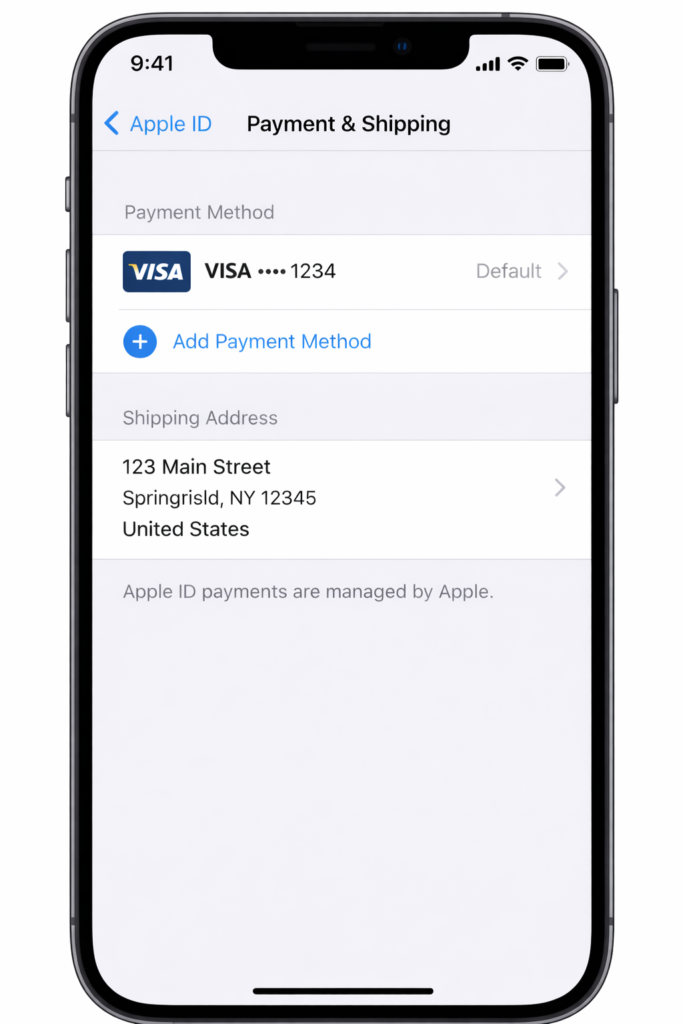
How to Find Out Which Card Is Linked to Your App Store on iPhone / iPad
To check which card is linked to your App Store, follow the instructions listed below:
- Open the Settings application
- Tap on your Apple ID name at the top of the screen
- Select Payment & Shipping
- Authenticate with your Face ID / Touch ID or passcode
- Look at what card is linked to your App Store. The card that is currently active will be listed on the screen (along with what type of card it is and its last four digits).
The active card appears at the top, showing the card type and last four digits.
How do I Check Which Card is Linked to My App Store on my Mac?
If you have a Mac computer, you can determine your payment method through the App Store.
Instructions
- Open the App Store.
- Click on your name or profile icon.
- Click Account Settings.
- If prompted, sign in.
- Look for Payment Information.
Now you can see which card is currently linked to your App Store account, as well as any backup payment sources.
What happens if you’re unable to view a card linked?
If there is no card displayed, you may be using one of the following payment methods:
- Apple Account balance
- Gift cards
- “None” (available in select regions)
You may also experience subscription pauses, or have failed purchases without a valid card linked.
Why it’s important to know what card is currently link to your App Store.
Knowing which card is currently linked to your App Store helps you with:
- Continuous subscription service
- Updating expired/replacement cards
- Tracking charges to your account
- Preventing payment issues
Additionally, since Apple is responsible for billing purposes, having updated payment information is essential.
How to View, Change, or Remove the Card Linked to App Store
Staying on top of your payment information is crucial for uninterrupted app purchases and subscriptions. This guide will provide you with simple step-by-step instructions on how to view, change or delete the card associated with the App Store through an iPhone, iPad or Mac.
What is App Store Card?
The App Store Card refers to the default payment method associated with the Apple ID account. The App Store card is utilized for:
- iOS app and game purchases;
- In-app purchases;
- Subscriptions (music, cloud storage, app subscriptions).
If you are set up with multiple payment methods, Apple will charge against them in the order they are listed.
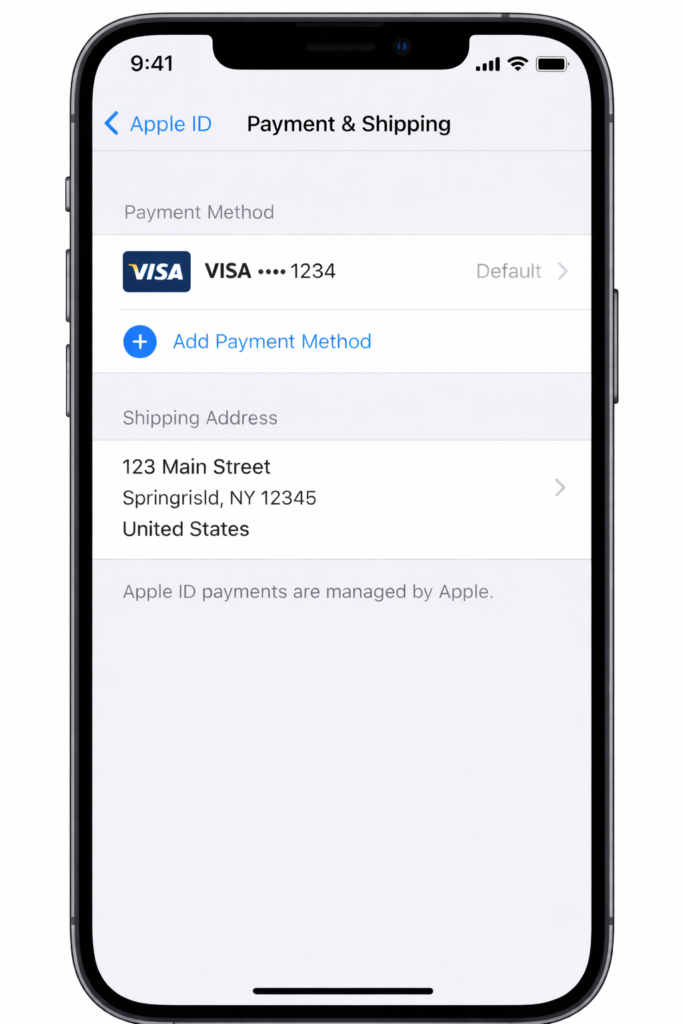
How to View App Store Card (iPhone or iPad)?
Use the instructions below as a quick reference for viewing your current payment methods.
Step 1: Open the Settings App
Step 2: Tap your Apple ID name (located at the top of the screen).
Step 3: Tap Payment & Shipping.
Step 4: Verify your identity.
Step 5: View your App Store card.
The App Store card image and last four digits of the active card will display.
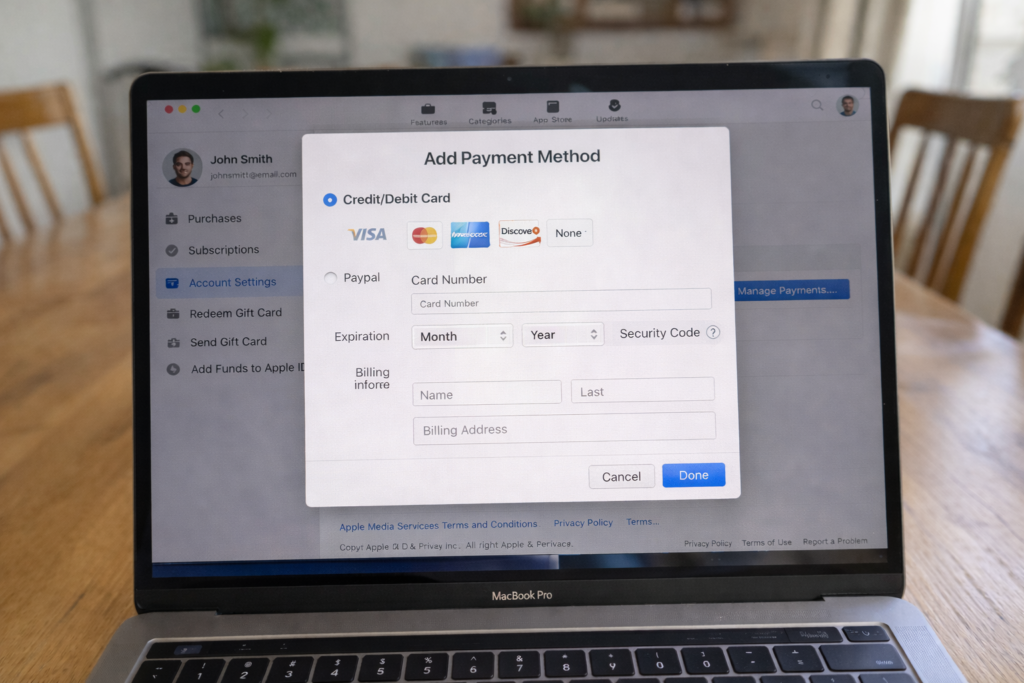
How To Update Your Payment Method For The App Store
If your card expires or you wish to utilize a different credit card, please see below.
Updating Your Credit Card(s)
- Open ‘Settings’ and choose ‘Apple ID’ and then go to ‘Payment & Shipping’.
2. Choose to “Add Payment Method” or select a previous method.
3. Enter new card data.
4. Drag new card to top position for primary.
Newly entered credit card will become payment method for future purchases through the app store.
How To Delete Your Existing Payment Method For The App Store
You can only delete a payment method from your account if you have another valid payment option available.
Deleting A Payment Method
- Open ‘Payment & Shipping’
- Select “Edit”
- Select the card you want to delete
- Then select “Remove”
NOTE: If you currently have any subscriptions linked to your device, it is impossible for you to delete the last payment method for your account.
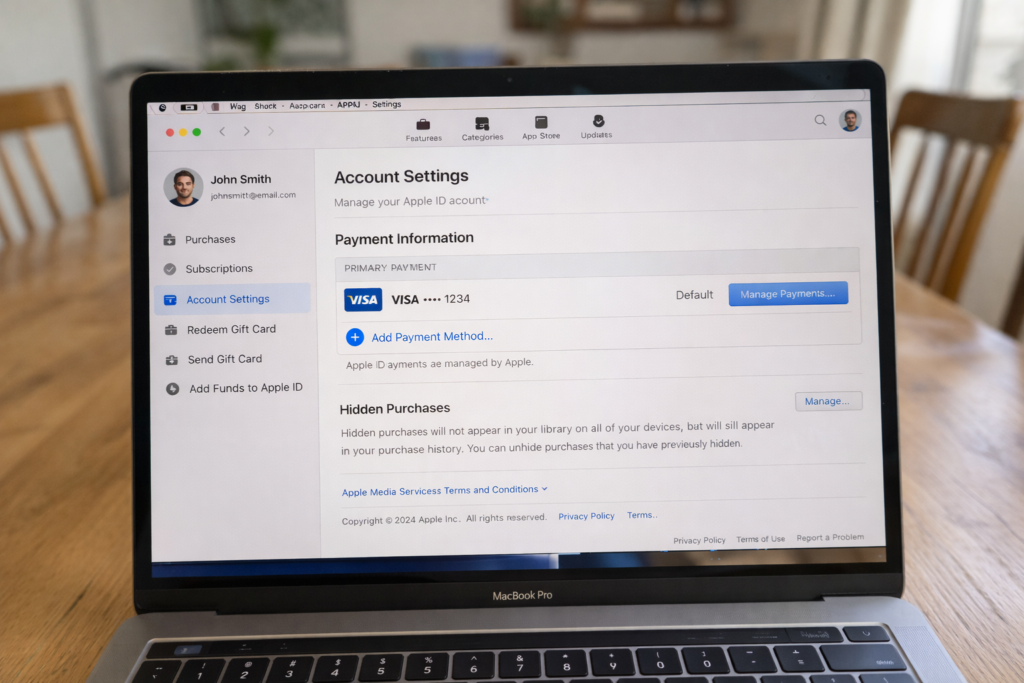
How to View or Change The Credit Card On Your Mac in app store.
As a Mac user, you can manage the payment details of your App Store account.
To view or change your credit card on Mac, follow these steps:
- Open the App Store
2. Click your name or profile icon
3. Choose Account Settings
4. Log in (if prompted)
5. View, update or remove the credit card under Payment Information
Common Problems Managing The Credit Card
There are many common problems with managing your credit card linked to your Apple account. These include:
- You may not be able to remove your credit card because of existing subscriptions you have on file.
- Payments made with your previous credit cards may have been declined by the bank.
- Family Sharing restrictions prevent you from accessing acceptable payment methods available to you through iTunes.
As all billing occurs through Apple, it is essential that your payment method is kept up to date to prevent any interruptions in the service you receive.
conclusion
Managing your Apple account card linked with your App Store is not difficult to do. If you want to see what your payment method is, change your credit card, or delete your old credit card, Apple has quick ways for you to do this through your iPad/iPhone or Mac. Taking the time to make sure that your billing information is accurate will help prevent issues like failed transactions, interruptions of your subscriptions and unknown charges.
When you regularly check your payment details it also provides you total control of your App Store purchases and subscriptions when you have to replace an expired card or if your payment information changes; keeping the card you have linked with the App Store up to date ensures that everything still functions without issues.