
Hostinger website builder tutorial 2026
introduction
The Hostinger Website Builder is already being used by many novice users and small business owners interested in establishing their own professional website, but without requiring the requisite skill set or overhead usually associated with creating an actual website. The User-friendly drag-and-drop interface, AI-powered applications, the amount of hosting options provided to users, and low cost of $3 per month present an opportunity for users looking for a fast and easy path toward establishing their presence online. The purpose of this article is to provide a detailed examination of Hostinger’s Website Builder’s functionality, feature set, and overall compare it against similar products available today.
Hostinger Website Builder Tutorial: Step-by-Step Guide for Beginners (2026)
I will assist you by creating a step-by-step breakdown of the Hostinger website builder so that anyone can easily create an online presence, regardless of their previous web development experience. Hostinger is a simple web development tool designed for those who want to quickly and affordably get their ideas online without any coding knowledge.
By the end of this article, you will be able to effectively use Hostinger to develop, customize, and publish your website.
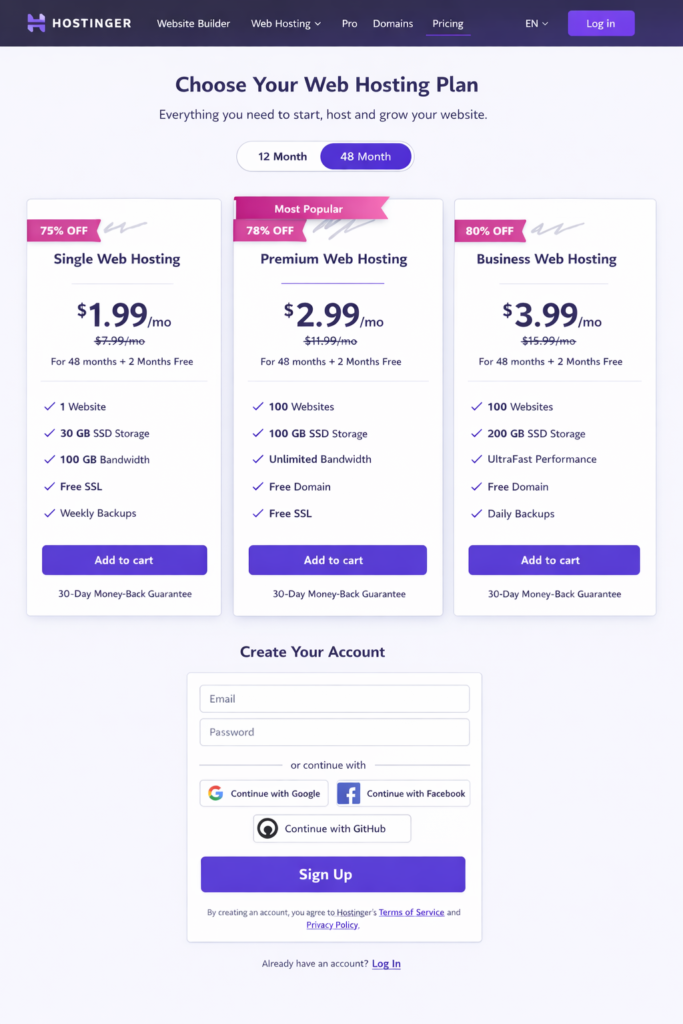
Step 1: Sign Up for Hostinger and Select Your Plan
To begin, please visit hostinger.com and sign up for a new account. The Hostinger Website Builder is included within every hostinger.com hosting plan, meaning you will not have to purchase it as a separate item.
During the signup process, you will need to:
- Select your hosting plan
- Either register or connect your existing domain name to your new hostinger account
- Complete the payment and account setup
Once you have signed into your account, you will enter the Hostinger Dashboard where you will find access to the Hostinger Website Builder.
Step 2: Start Using the Hostinger Website Builder
To create a website using the Hostinger Website Builder, follow these steps from your dashboard:
- Choose “Websites”
2. Click “Add Website” Button
3. Select Hostinger Website Builder as your chosen method for creating a website
After selecting the Hostinger Website Builder, you will be prompted to answer a few questions related to what type of website you need (i.e. blog, business, online store, portfolio, etc.). This information will help Hostinger generate an appropriate selection of templates and features for your new website.
Step 3: Select a Template or AI Website Builder
Hostinger offers either pre-made templates (that provide complete customization from the get-go), or its AI website builder. The latter creates an automatic, customized website for you based upon your answers to questions about your content and layout.
Template Features:
All templates are designed to be:
- mobile-friendly
- customizable
- optimized for speed.

Step 4 – Tailoring your Website Using the Drag and Drop Feature –
Hostinger excels in providing beginners with easy drag and drop editing capabilities.
With drag and drop editing, you can:
- Click directly on text to edit it
- Add sections (testimonials, contact forms, hero),
- Change fonts, colors, and layouts
- Visually move sections/elements
There are no requirements for any programming knowledge or technical expertise.
Step 5: Adding Pages and Menu Navigation to Your Site
Most websites are not just one page. In Hostinger Website Builder, you can add all of the following types of pages: Home, About, Services, Blog, and Contact.
To add a page:
- Click the “Pages” button
2. Click on “Add New Page”
3. Select either a layout or start from scratch (blank)
You can customize the navigation menu for your website so the visitors can quickly find what they are looking for.
Step6: Optimising Your Website for Search Engines
Hostinger provides built-in Search Engine Optimisation (SEO) tools which will be easy enough for a beginner to use.
Features that you can use are:
- Edit Title Tags and Meta Descriptions
- Create SEO-friendly URLs
- Automatically generate Sitemaps
- Write ALT tags for images
If you want your website to be found via Google Search, having these features will be critical to helping bring visitors to your site.
Step7: Preview and Publish Website
Prior to publishing your website:
- Preview it on both Desktop and Mobile
- Test Links, Images and Text for correctness
- Verify that all pages can be loaded perfectly.
Once you’re satisfied that you’re ready to publish, click on the “Publish” Button to go live with your website to your Domain.
Hostinger handles everything including Hosting, Performance and Security on your behalf.
Step 8: Maintain and Monitor Your Website
After you’ve published your website:
- Content can be edited at any time.
- Blog posts can be added.
- Images and various sections can be updated.
- Performance analytics can be tracked via integrations.
Hostinger allows you to easily make constant changes since they store your website automatically.

Hostinger Website Builder – Best for First-time Users
Lastly, here is a recap of why Hostinger is the best option for first-time users.
- Drag-and-drop editing.
- AI-created websites.
- In-built optimisation and SEO.
- Inexpensive hosting services included.
If you are a beginner looking for an easy and complete way to create and publish your website, then Hostinger is the best choice.
How to Use Hostinger Website Builder: Complete Tutorial, Features & Pricing
Hostinger Website Builder is an all-in-one tool designed to help beginners and small businesses create professional websites quickly—without coding skills. In this guide, you’ll learn how to use Hostinger Website Builder, explore its key features, understand pricing, and see where visuals can enhance the learning experience.
What Is Hostinger Website Builder?
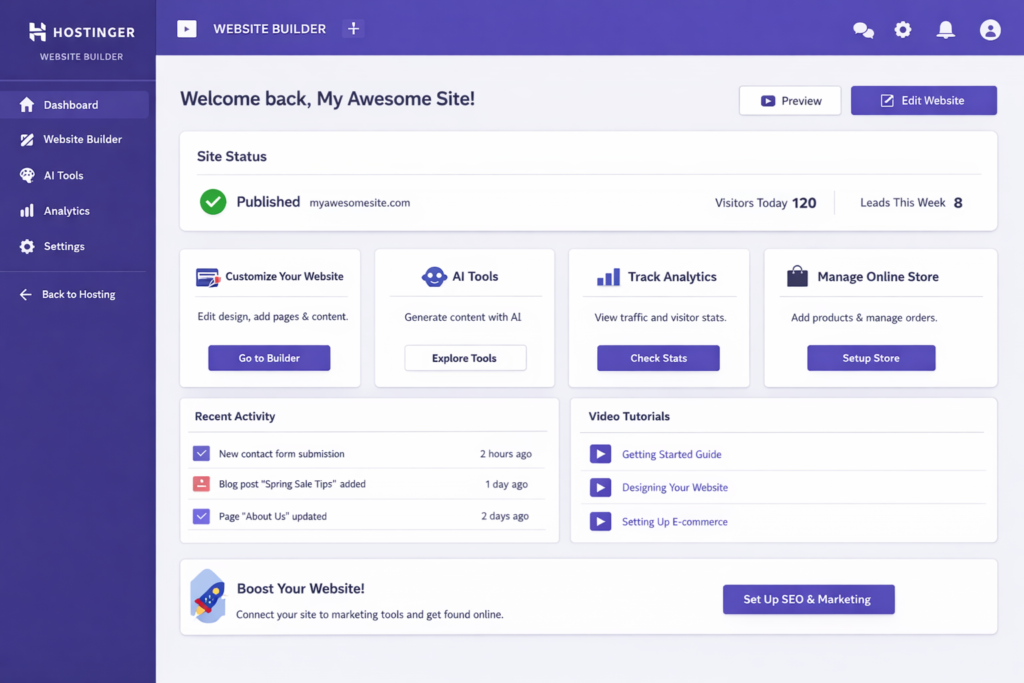
Hostinger Website Builder is a drag-and-drop website creation platform included with Hostinger’s hosting plans. It allows users to design, customize, and publish websites using pre-built templates, AI tools, and built-in hosting.
It’s ideal for:
- Beginners
- Small business owners
- Freelancers
- Bloggers
- Online stores
How to Use Hostinger Website Builder (Step-by-Step Tutorial)
Step 1: Choose a Hostinger Plan
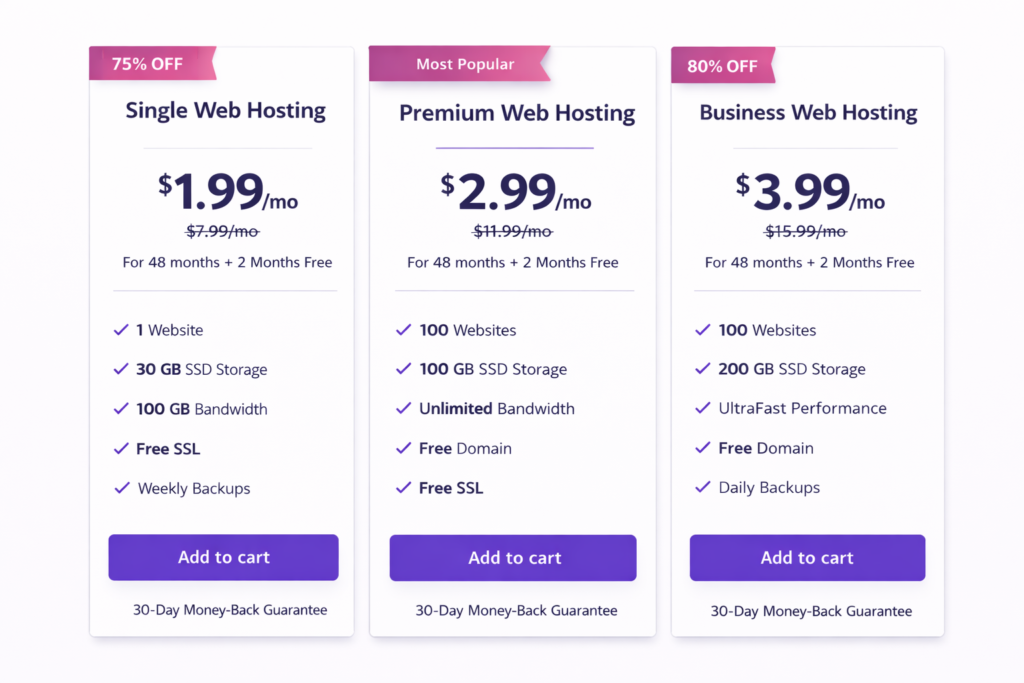
To access the website builder, you need a Hostinger hosting plan (Premium or higher is recommended).
Steps:
- Visit Hostinger’s website
- Choose a hosting plan
- Register a domain (or connect an existing one)
- Complete checkout
Once logged in, you’ll see the website setup options.
Step 2: Select Hostinger Website Builder
After purchasing hosting:
- Go to the Hostinger control panel (hPanel)
- Click “Create a website”
- Choose Hostinger Website Builder
- Select AI Website Builder or Template-based Builder

Step 3: Pick a Template or Use AI Builder
You can either:
- Let AI generate a website based on your business type
- Choose from professionally designed templates
Templates are categorized by:
- Business
- Portfolio
- Blog
- Online store
- Landing pages
All templates are mobile-responsive.
Step 4: Customize Your Website
This is where you really learn how to use Hostinger Website Builder effectively.
Using the drag-and-drop editor, you can:
- Edit text and headings
- Change fonts and colors
- Add images and videos
- Rearrange sections
- Insert buttons and forms
Everything updates in real time.

Step 5: Add Pages and Navigation
You can easily add or manage pages:
- Home
- About
- Services
- Blog
- Contact
Navigation menus update automatically.
Steps:
- Open the Pages menu
- Click Add Page
- Choose a layout
- Rename and organize pages
Step 6: Optimize for SEO
Hostinger Website Builder includes built-in SEO tools:
- Edit page titles and meta descriptions
- Customize URLs
- Enable image alt text
- Automatic sitemap generation
These features help your site rank better on search engines.
Step 7: Publish Your Website
Once you’re satisfied:
- Click Publish
- Connect your domain
- Your website goes live instantly
You can edit and republish anytime.

Key Features of Hostinger Website Builder
1. Drag-and-Drop Editor
No coding required—perfect for beginners.
2. AI Website Builder
Creates a complete website in minutes using AI.
3. Free Domain & Hosting
Included with most plans.
4. Mobile-Responsive Design
Websites automatically adapt to all screen sizes.
5. Built-in SEO Tools
Helps improve search engine visibility.
6. E-commerce Functionality
Sell products, manage orders, and accept payments.
7. Performance & Security
Includes SSL certificates and fast loading speeds.
Hostinger Website Builder Pricing
Hostinger Website Builder does not have a separate pricing model—it’s included with hosting plans.
Popular Plans:
- Premium Hosting – Best for personal websites
- Business Hosting – Best for small businesses and online stores
Pricing usually includes:
- Website builder
- Free domain (1 year)
- SSL certificate
- Customer support
Prices may vary based on promotions and billing period.
Pros and Cons of Hostinger Website Builder
Pros
- Beginner-friendly
- Affordable
- AI-powered tools
- Fast performance
- All-in-one solution
Cons
- Limited third-party integrations
- Less advanced customization than custom-coded sites
Who Should Use Hostinger Website Builder?
Hostinger Website Builder is best for:
- Beginners building their first website
- Small businesses with limited budgets
- Freelancers and portfolios
- Bloggers and content creators
- Simple online stores
Hostinger Website Builder Tutorial: Build a Professional Website in Under an Hour
In the past, building a professional website took weeks of hard work and required technical knowledge. However, with Hostinger’s Website Builder, you only need to spend an hour to design and launch your complete website without any prior web designing experience.
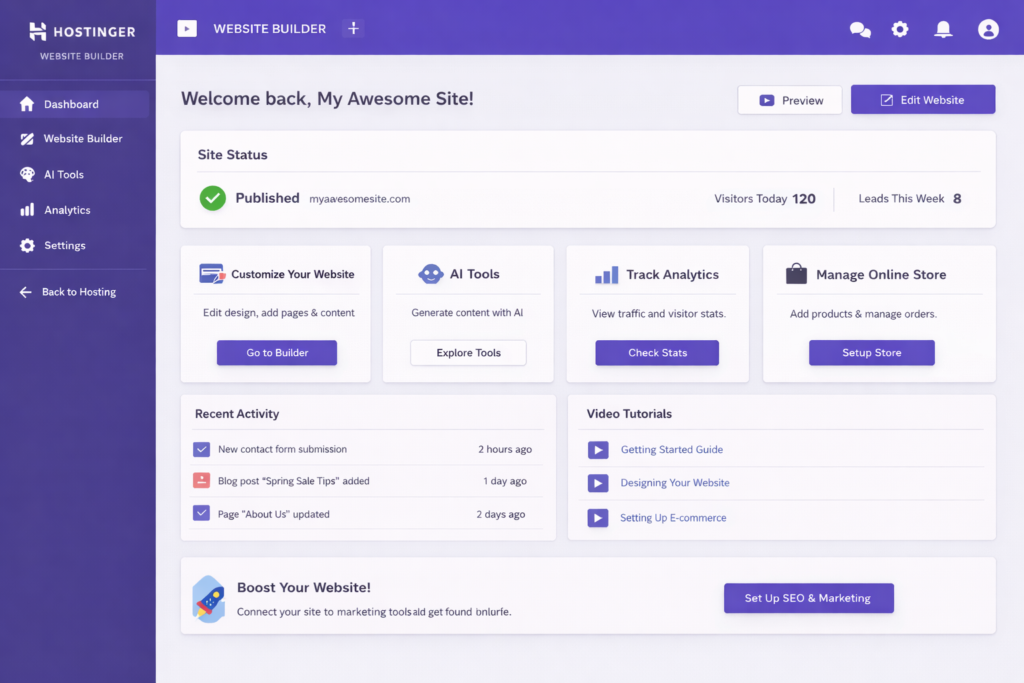
This tutorial for Hostinger’s Website Builder gives you everything needed to get started, including setting up your account, and getting your website online.
What is Hostinger’s Website Builder?
The Hostinger Website Builder is an easy-to-use drag-and-drop website creating tool that you can use with Hostinger hosting plans. Hostinger Website Builder enables you to quickly create your own professional website by combining all services in one solution, including web hosting, building the look and feel of your website and all the other basic elements required to build a fully functional website.
The Hostinger Website Builder is perfect for:
- New to computers
- Small Businesses
- Freelance designers
- Website owners and publishers
- Online retailers
Requirements Before You Start
You will need to sign up for and purchase a Hostinger Hosting Package before you can begin following the tutorial for Hostinger’s Website Builder. You should have:
- Your own Hostinger Hosting account
- A domain name (you can get it for free with most Hostinger hosting accounts)
- The basic content for your website, including text, images, and logos.
No previous design experience or coding is needed to use Hostinger’s Website Builder.
The Hostinger Website Builder Tutorial (in steps): Step by Step
Step 1 – Begin using the Hostinger website builder
- log in to your account on Hostinger.
- go to the hPanel dashboard.
- click to create a new website.
- select to build with the Hostinger website builder.
- you will then be taken straight into the website setup.
- Suggested image: Select ‘Create a Website’ from the hPanel menu.
Step 2 – Choose an AI Builder or template
Hostinger allows for two different choices for building your website:
- AI Website Builder – This option builds a website for you by collecting business information.
- Template Selection – This option lets you choose one from Hostinger’s numerous professionally designed templates.
Templates are available for many types of websites including:
- Business Pages
- Portfolio Pages
- Blog Pages
- E-commerce Pages
- Landing Pages
All templates are designed to be responsive and will display correctly on both desktop and mobile devices.
Step 3 – Personalise the design of your website.
The true power of the Hostinger Website Builder is in the amount of personalisation that can be done to create a unique website.
With a simple drag-and-drop editor, you can:
- Change the text on your page instantly
- Change your website colours and fonts
- Swap out images on your pages
- Add buttons, forms and other sections
- Move your layout around using the visual editor
As you change your design layout, you see them updating in real-time.
Step 4 – Add Pages & Manage Pages
Adding new pages to your website is made very easy and quick with Hostinger.
- To Add a New Page to your Website, all you have to do is:
- Open the “Pages” section.
- Click “Add Page”
- Select a layout.
- Name the Page and Reorder Pages
Some common page types include:
- Home Page
- About Page
- Services Page
- Blog Page
- Contact Page
As you add new pages to your website, the website navigation updates automatically.
Step 5: Adding Important Features
The Hostinger Website Builder Tutorial will teach you how to add these features:
- Forms for contacting you
- Maps from Google Maps
- Links to your social networks
- Galleries of photos
- Buttons to take action
All of the features listed above can be added without using a plug-in; these features all have pre-installed features.
Step 6: Making Your Website Google-Friendly
With The Hostinger Website Builder, each user has access to a variety of built-in Search Engine Optimisation (SEO) tools designed for helping your website appear on the search engine results page.
Users can:
- Change the page titles and meta descripts
- Create custom URLs
- Insert descriptive alternative text for each of your pictures
- Get automatic sitemaps created for them
The settings mentioned above for Google-friendly search engine optimising tools are available for all of the pages you create with Hostinger Website Builder.
Step 7: Previewing and Publishing Your Site
Before your website is published, make sure to: check the look of your website from both desktop and mobile devices check all links, and content and make final adjustments.
When ready to publish: Click Publish on your dashboard, then set up your domain connection(s).! Your website is online!
How Much Time Will It Take to Create a Website?
According to the tutorial on how to create your website, the average user can expect to spend:
- 5-10 minutes setting up the website hosting;
- 5 minutes selecting a template or generating their website using AI;
- 30-40 minutes customizing the design and content of the website;
- Finally, 5 minutes will be dedicated to publishing your website.
In total, it should take you less than one hour to complete the above tasks.
Time-saving Features of the Hostinger Website Builder
- Drag-and-drop editor;
- AI website generation
- Built-in web hosting and SSL certificates;
- Mobile-friendly templates;
- No need to manage plugins;
- Integrated SEO tools;
Suggested image placement: 📷 image highlighting the above features with icons.
Who Can Use the Hostinger Website Builder?
The Hostinger Website Builder is ideal for:
- Individuals starting out in their online career or business;
- Small businesses that do not have a large budget or technical expertise;
- Personal brands;
- Individuals that are freelance or looking to create a portfolio;
- People looking to set up a simple eCommerce site.
Hostinger Website Builder Review & Tutorial: Is It Worth It Compared to Other Builders?
Building a website no longer requires coding skills or a big budget. Tools like the Hostinger Website Builder promise an all-in-one solution that is fast, beginner-friendly, and affordable. But how good is it really, and how does it compare to other popular website builders?
In this Hostinger Website Builder review & tutorial, we’ll cover features, ease of use, pricing, pros and cons, and comparisons with other builders so you can decide if it’s the right choice for you.
What Is Hostinger Website Builder?
The Hostinger Website Builder is a drag-and-drop website creation tool included with Hostinger hosting plans. It is designed for beginners, small businesses, freelancers, and anyone who wants to launch a website quickly without technical knowledge.
It combines hosting, templates, design tools, AI features, and domain management in one dashboard.
Key Features of Hostinger Website Builder
1. Drag-and-Drop Editor
The editor is simple and visual. You can move elements like text, images, buttons, and sections by dragging them into place. No coding is required.
2. AI Website Builder
Hostinger includes AI tools that can:
- Generate website layouts
- Create text content
- Suggest images
- Write blog sections and headlines
This is especially helpful if you’re starting from scratch.
3. Mobile-Responsive Templates
All templates are automatically optimized for mobile devices. You don’t need to design separate versions for desktop and mobile.
4. Built-In SEO Tools
The Hostinger Website Builder includes basic SEO features such as:
- Meta titles and descriptions
- Image alt text
- URL customization
These tools help your website rank better in search engines.
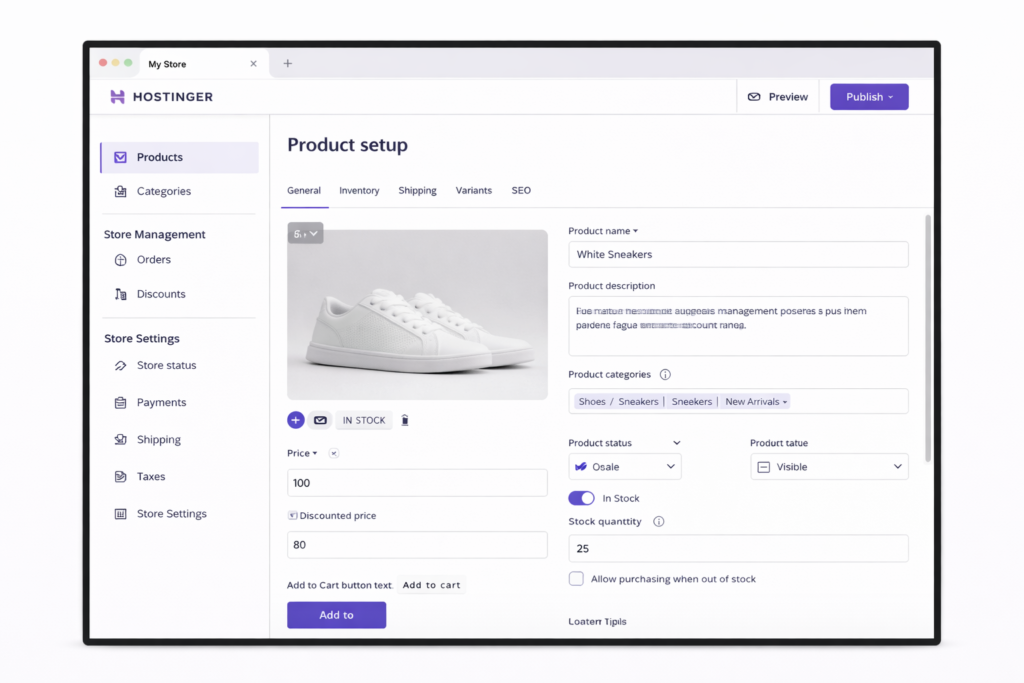
5. E-commerce Functionality
You can sell products online using built-in e-commerce tools:
- Product management
- Order tracking
- Payment integrations
- Inventory control
This makes it suitable for small online stores.
Hostinger Website Builder Tutorial: How to Create a Website
Here’s a quick step-by-step overview of how to use the Hostinger Website Builder:
- Sign up for a Hostinger plan that includes the website builder
- Choose a template or let AI generate a website
- Customize your design using the drag-and-drop editor
- Add pages and content (About, Services, Contact, Blog)
- Optimize SEO settings
- Publish your website
The entire process can take less than an hour for a basic site.
Hostinger Website Builder Pricing
One of the biggest advantages of the Hostinger Website Builder is pricing. It is included with Hostinger hosting plans, meaning you don’t need to pay separately for hosting and the builder.
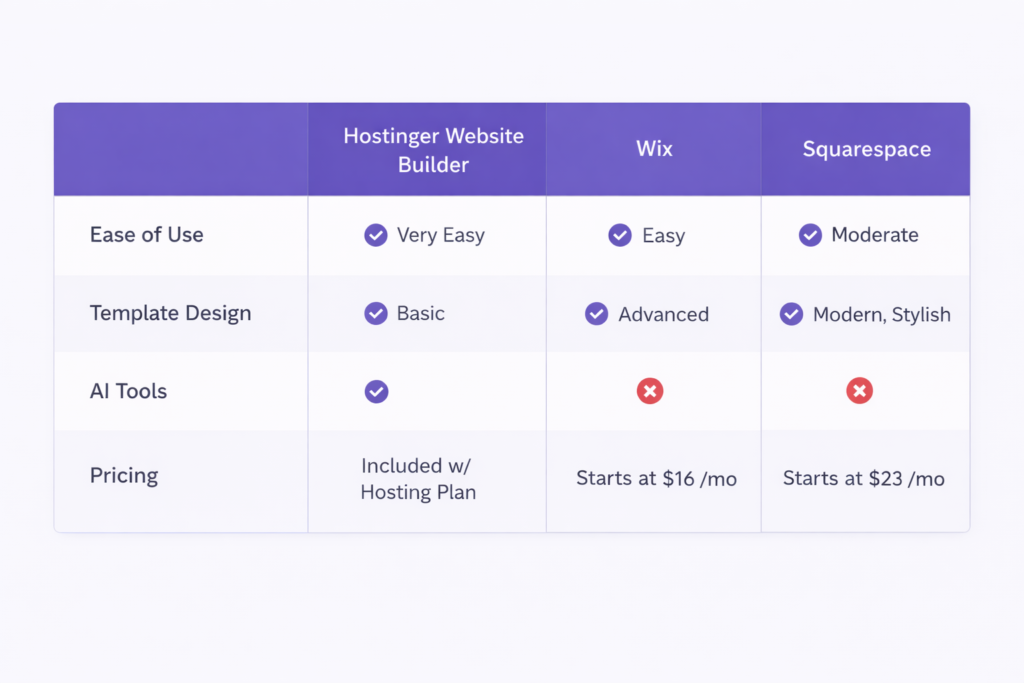
Compared to standalone builders like Wix or Squarespace, Hostinger is significantly more affordable while still offering essential features.
Hostinger Website Builder vs Other Website Builders
Hostinger Website Builder vs Wix
- Easier to use: Hostinger
- More advanced design freedom: Wix
- Lower cost: Hostinger
Hostinger Website Builder vs Squarespace
- Better for beginners: Hostinger
- More design-focused templates: Squarespace
- Budget-friendly: Hostinger
Hostinger Website Builder vs WordPress
- No maintenance required: Hostinger
- More customization and plugins: WordPress
- Faster setup: Hostinger
Pros and Cons of Hostinger Website Builder
✅ Pros
- Beginner-friendly interface
- Affordable pricing
- AI-powered tools
- Built-in hosting and domain support
- Fast website setup
❌ Cons
- Less design flexibility than advanced builders
- Limited third-party integrations
- Not ideal for very large or complex websites
Who Should Use Hostinger Website Builder?
The Hostinger Website Builder is ideal for:
- Beginners with no technical skills
- Small business owners
- Personal websites and portfolios
- Freelancers and service providers
- Small online stores
If you need a fast, affordable, and simple website solution, it’s a strong choice.
Hostinger Website Builder Tutorial for Beginners: Features, SEO, and Real Pros & Cons
Are you interested in creating an amazing professional website without writing a single line of code? If so, this Hostinger Website Builder tutorial will help you learn everything needed to accomplish that!
In this article, we’ll explain what Hostinger Website Builder is, how it works, the features it has available, the SEO capabilities, some pros and cons as well as all the other things that you need to know in order to make an informed decision if the Hostinger website builder is right for you.
So what does the Hostinger website builder do?
The Hostinger website builder is a beginner-focused website building platform that allows users to create a professional-looking website using drag-and-drop functionality combined with AI technology. Plus, it includes a web hosting package from Hostinger, making it an affordable way for small businesses, personal websites and bloggers alike to create beautiful websites without having to hire someone to do it for them.
Targeted Users:
- Individuals just starting out and inexperienced in technical skills
- Those starting a new small business
- Individuals looking for a portfolio or landing page for their product

How to Get Started With the Hostinger Website Builder (step-by-step) Tutorial for Beginners
Getting started with the Hostinger website builder is very easy:
- Sign up for a Hostinger Hosting Plan
- Select “Website Builder” during the signup process
- Choose a template or allow the AI Website Builder to create one for you
- Create and customize your website using the visual editor
- Publish your website
This Hostinger Website Builder tutorial for beginners emphasizes the ease of using the program – the majority of users are able to successfully publish a website within one hour of signing up for the service.
Key components of Hostinger’s website builder.
- Drag and drop editor.
With no coding experience you’ll be able to move section, text, images and buttons easily. - Website made by Artificial Intelligence.
Answer a few questions and AI will create a complete website layout with sentences and images. - Pre-made templates.
Modern and responsive mobile templates, designed for business, blogs, and portfolio. - Built-in hosting and domain.
All you have to do is connect your domain and everything will work out of the box. - Online store function.
You can sell products with basic ecommerce features like product pages, payment methods and managing orders.
Search engine optimization explained for beginners.
Candidates are often very concerned about SEO. Since no beginner website builders tutorial would be complete without that, we have included the following SEO features that can be modified.
Hostinger’s SEO Tools:
- Meta titles
- Meta descriptions
- Custom URLs
- Alt Text
- Mobile responsiveness
- Fast loading
Although you will not develop anything with advanced SEO plugins as you would with WordPress, Hostinger’s website builder will give beginners and small websites everything they need for their beginning SEO needs.
Performance and Mobile Optimization
All of the Hostinger Website Builder sites are:
- Automatically optimized for Mobile devices
- Optimized on super-fast hosting servers
- Pre-Optimized for maximum performance (no manual setup needed)
Thus, you will have an excellent user experience, as well as good SEO results.
Pros and Cons of using the Hoster Website Builder.
✅ PROS
- Ease of use (very beginner-friendly)
- Very affordable pricing (this includes hosting)
- AI tools will save you time, unlike traditional builders
- Provides you with many clean and stylish Template designs.
- No technical maintenance
❌ CONS
- Customization is limited when compared to using a CMS such as WordPress
- No App/Plugin Marketplace
- Not recommended for larger or more complex sites
This unbiased article will explain to you how to use the Hoster Website Builder and why it’s such a useful tool.
Who Should Use Hoster Website Builder?
Hostinger Website Builder is the right solution for:
- Anyone looking to build a simple website quickly
- Anyone not wanting to use plugins or install updates
- Individuals creating a small website, such as a blog, online portfolio, or business website.
If advanced customization is something that you want, you may want to consider using a CMS like WordPress. However, for a beginner, Hostinger is an outstanding option to get started with web development.
Conclusion
Choosing the Hostinger Website Builder is the ideal solution for anyone who needs a professional looking site without the hassle of managing lots of different tools or paying a premium for hosting, while maintaining an easy to use interface; powered by AI technology; has built-in solutions such as your own web host provider (Hostinger) and basic Search Engine Optimization capabilities; which makes the website builder perfect for novices creating a website for their first time.
Although the Hostinger Website Builder does not feature many advanced customisation options or offer a large Application or extension library, it provides excellent overall value for users who would like to quickly establish an online presence. The user-friendly design and low pricing are two major reasons why the Hostinger Website Builder is one of the best value website builders available today.
So, if you’re interested in launching a functional, clean, and contemporary-looking website easily, you should definitely give serious consideration to using the Hostinger website builder.





One Comment