
How to create a subdomain in Namecheap 2026
introduction
Creating a subdomain on Namecheap, then linking that subdomain to hosting is often necessary for webmasters wanting to structure their assets properly or start new portions of a site. Creating a subdomain is beneficial for starting blogs, online stores, and staging environments, without purchasing a separate domain name. This article serves as a beginner level step-by-step tutorial for creating a subdomain in Namecheap and having your subdomain correctly linked to your hosting account.
How to Create a Subdomain in Namecheap (Step-by-Step Beginner Guide)
By following the simple steps outlined in this beginner guide you will learn how to create a new subdomain on the NameCheap website. A subdomain is an additional part of your website that helps separate or organize your online content.
For example, some popular subdomains are:
- Blog.example.com – A place on your website for you to post your personal blog content
- Shop.example.com – A location for you to create an online store using your domain name
- Mail.example.com – A location for you to set up your email account using your domain name
Subdomains make it easier for you to structure your website in a logical manner, provide better testing environments and allow you to provide different services using one domain name.
Before beginning the steps below to create a subdomain, please ensure that:
- You currently own a NameCheap registered domain name
- You have access to your NameCheap account
- Your registered domain is using either NameCheap BasicDNS or PremiumDNS
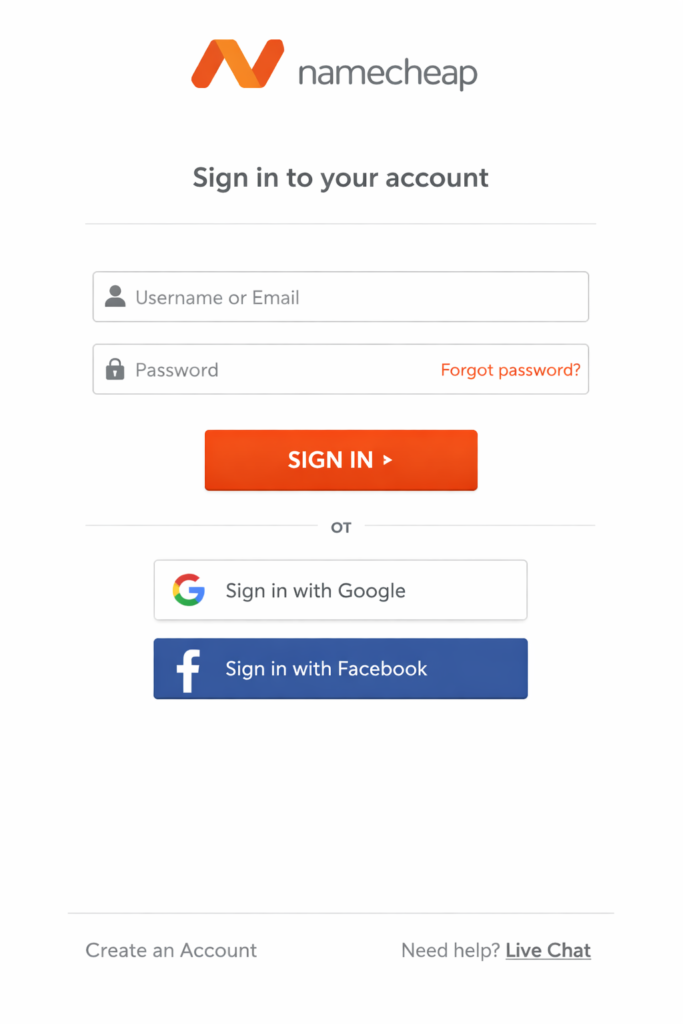
Step 1 Log into your NameCheap Account
- Go to namecheap.com
- Click on sign in located at the top right of the page
- Enter your username and password to log into your account
Step 2 Domain List
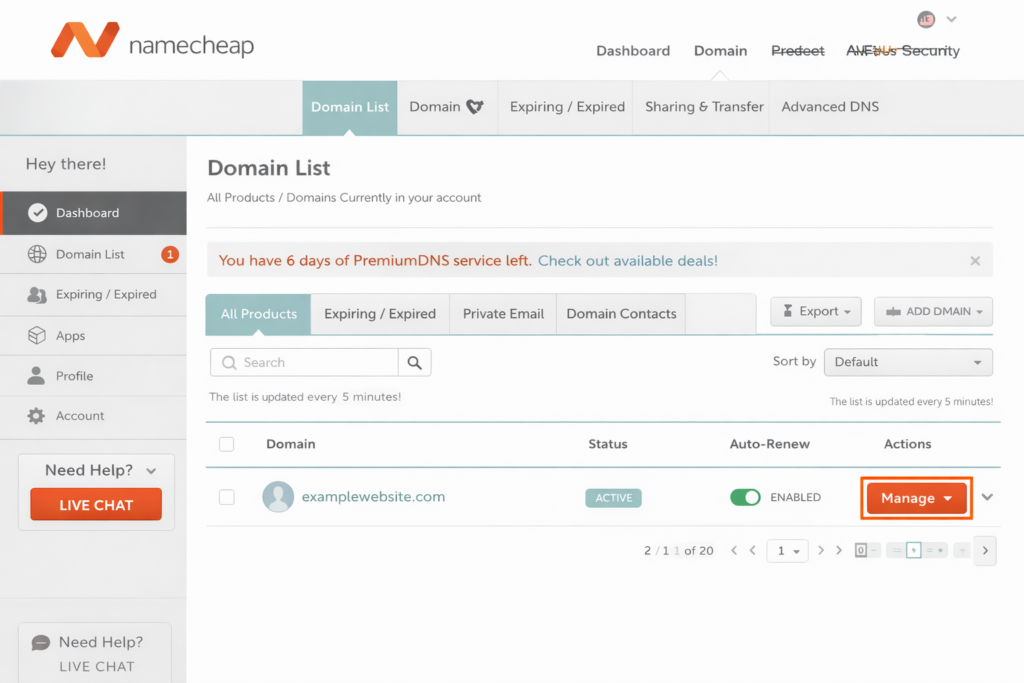
- Once you are logged into your account, on the left side menu you will see the option for domain list; click on this option
- Locate the domain name you would like to create the subdomain
- Once you find the domain name you are creating the subdomain for, you will see the manage button on the right side of the domain name. Click manage.
Step 3: Navigate To The Advanced DNS Tab.
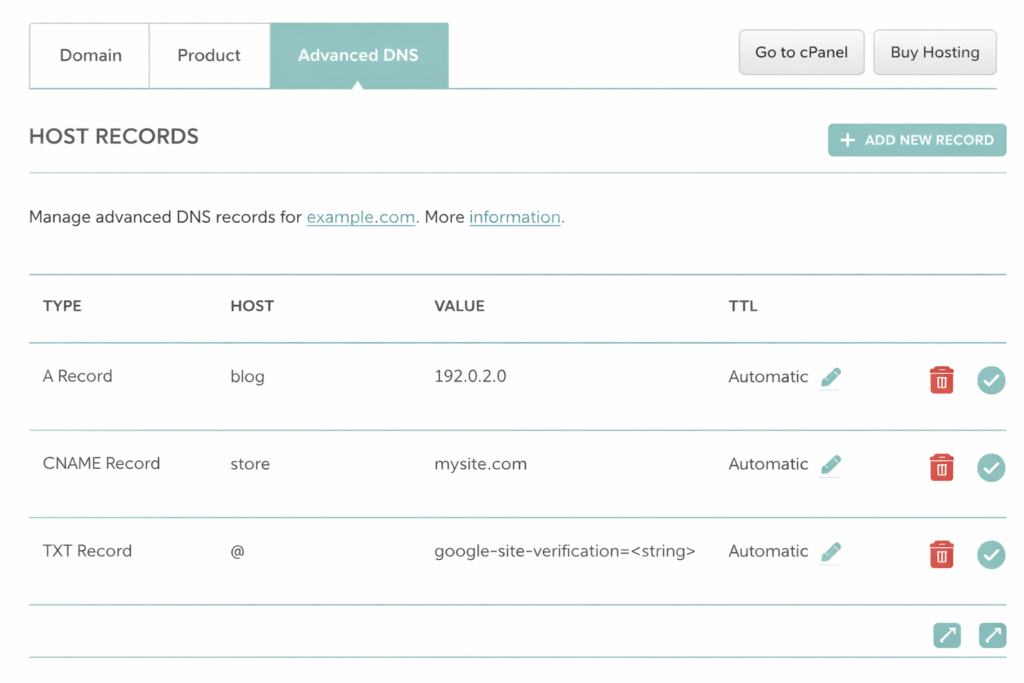
- While in the domain’s management area, click on the Advanced DNS tab.
- Scroll down to the Host Records section.
This is where you will add the subdomain record.
Step 4: Create A New Subdomain Record.
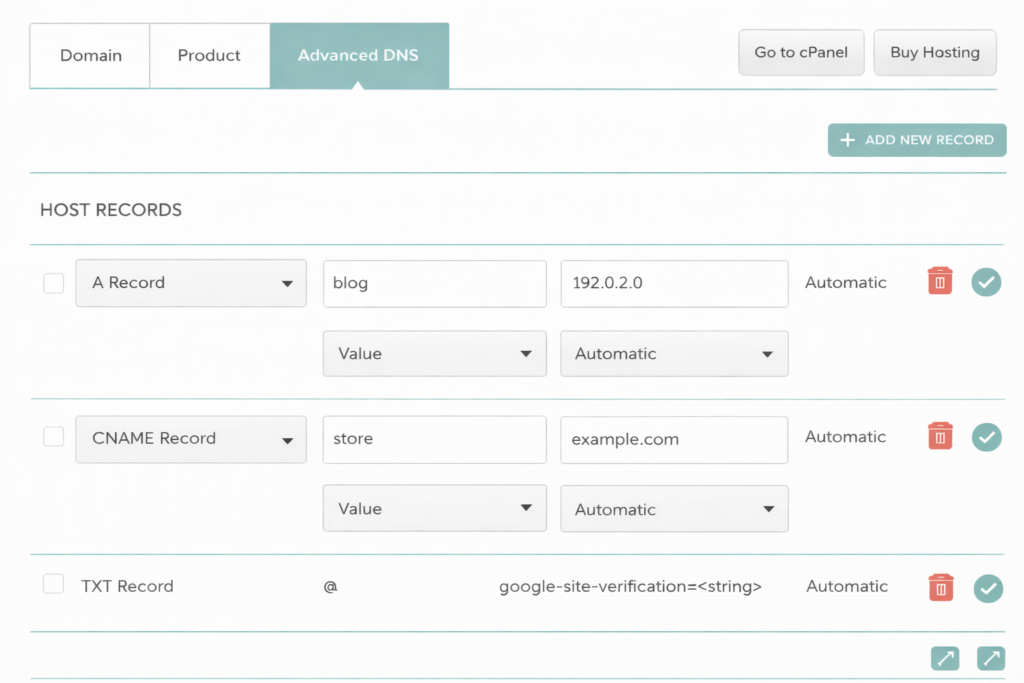
In order to add a subdomain, you will need to create a new DNS record.
Option A. Create A Subdomain Using An A Record.
If your new subdomain needs to point to an IP address, choose this option to create your subdomain.
- Type – A Record.
- Host – Subdomain Name (ex: blog).
- Value – Server IP Address.
- TTL – Automatic.
Click The ✔ Save Icon.
Option B. Create A Subdomain Using A CNAME Record.
If your subdomain should point to another domain, choose this option to create your subdomain.
- Type – CNAME Record.
- Host – Subdomain Name (ex: shop).
- Value – Target Domain Name (ex: example.com).
- TTL – Automatic.
Click The Save Button.
Step 5: Wait For DNS Propagation.
DNS changes typically take anywhere from 5-30 minutes to propagate but may take 24 hours in rare instances.
After propagation is complete, your new subdomain will be live.
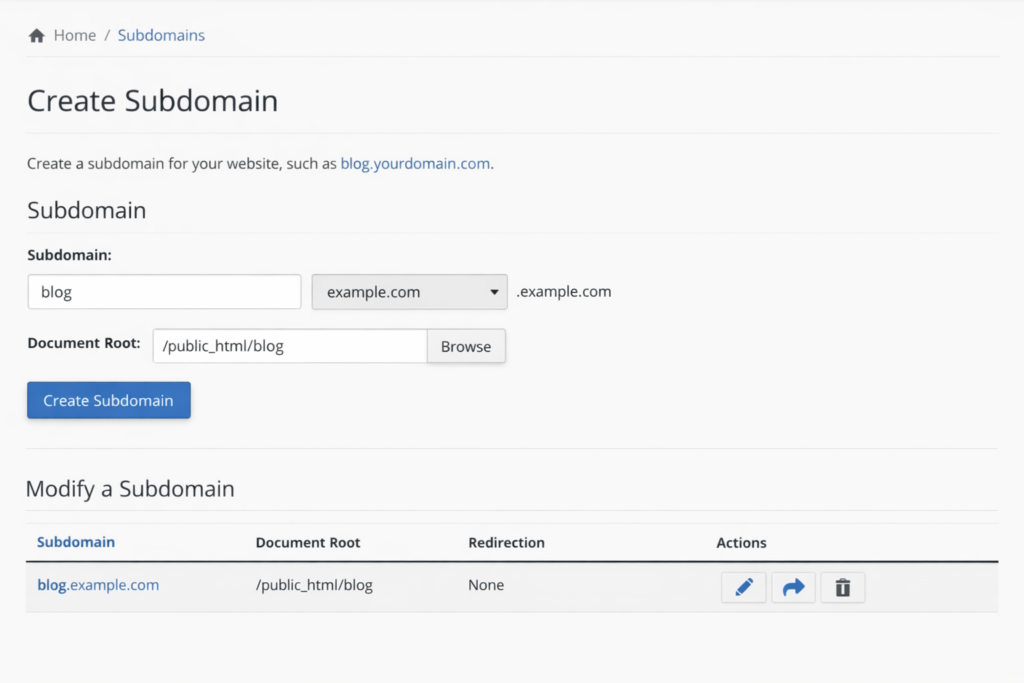
Step 6: Link Your Subdomain to Hosting (Optional)
If you would like to display a website on your subdomain:
- Add your subdomain under your hosting control panel (cPanel, hPanel, etc)
- Create a folder/directory for your new subdomain
- Upload or install your website files or install WordPress.
Common Problems and Solutions
Subdomain is not working?
- Double-check spelling of DNS records
- Verify that you are using the correct IP address
- Delete browser and DNS cache
- Confirm that your hosting account is correctly set up.
Why would I want to use subdomains?
- Better organization of content
- Remove a blog or store from the main site
- Create a staging or testing area
- Provide a better experience for your users.
How to Create a Subdomain in Namecheap: Complete Guide for 2025
One of the simplest ways to structure your site or create new areas on your site, such as a blog, store, or support center, is with subdomain creation. This guide will help you learn how to create a subdomain in Namecheap step-by-step, even if you are starting with no prior knowledge.
What is a Subdomain?
A subdomain is a portion of your main domain and functions as an entirely separate domain name before your main domain name (i.e. xyz.com).
Examples:
- Blog – blog.xyz.com
- Store – store.xyz.com
- Help Center – support.xyz.com
Subdomains can provide several advantages, including (but not limited to) organizing your content, providing a testing environment, and allowing many different services to be offered under the same main domain.
Why Create a Subdomain with Namecheap?
There are many common reasons for creating a subdomain with Namecheap, including:
- Having your blog store on a subdomain rather than your main domain.
- Creating a staging or development site.
- Hosting your documentation and/or support site.
- Enhancing the overall structure and navigation of your website.
Best of all, subdomains are free with your Namecheap domain!
What You Need to Have Before You Create a Subdomain
Before reading this guide for how to create a subdomain with Namecheap, you will need to meet a few criteria:
- You will need to have registered your domain with Namecheap.
- You will need to have the ability to sign in to your Namecheap account.
- You will have to be using Namecheap BasicDNS or Namecheap PremiumDNS on your domain.
To get started with creating your subdomain in Namecheap, follow these steps below:
step-1. Log in to your Namecheap account
Go to namecheap.com and sign in. (see below image for assistance)
step-2. Open Your Domain List
- Click on Domain List from your dashboard.
- Locate the domain name you would like to add the subdomain for.
- Click on the Manage button next to your domain name. (See below for an example)
step-3. Go to the Advanced DNS Tab
- From your domain management window, click on the Advanced DNS Tab.
- Scroll down to the Host Records section.
- This section houses all of your DNS records, including your subdomains. (See below for an example)
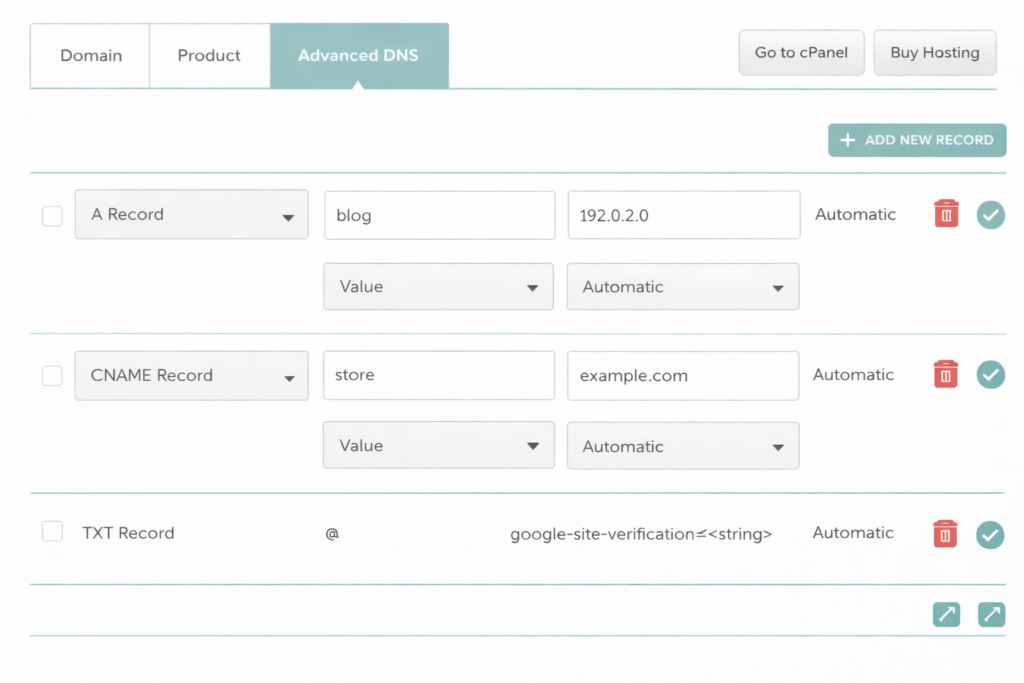
step-4. Create Your Subdomains DNS Record
This is arguably the most important part of how to add a subdomain in Namecheap.
Option 1: Create a Sub-Domain using an A Record
- This is for subdomains that point to a specific server IP Address.
- Type: A Record
- Host: your sub-domain name (for example: blog)
- Value: Your server’s IP address
- TTL: automatic
- Click on Save.
Option 2: Add a Subdomain by Using the CNAME Record Method
Use this method if you want the sub-domain you are adding to resolve to a domain name other than its own.
- Type: CNAME Record
- Host: Name of Sub-Domain (e.g. shop)
- Value: Name of Domain you want your sub-domain to resolve to (e.g. example.com)
- TTL: Automatic
Click Save.
Step-5: Allow Time for Your Changes to Be Propagated Over the Internet
DNS updates can take 5-30 minutes to take effect, however, sometimes DNS updates could take more than 24 hours.
Once your DNS updates have propagated, your Sub-Domain should now Work Correctly.
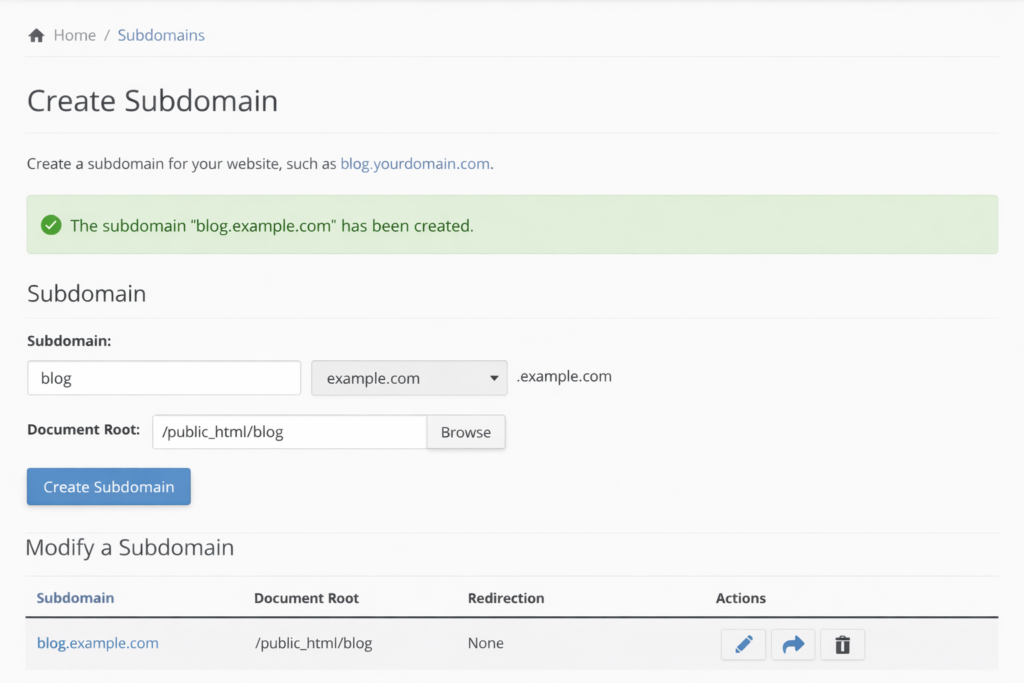
Step-6: Connect Your New Sub-Domain to Your Hosting (Optional, but Highly Recommended)
If you would like to use your Sub-Domain for a website:
- Create the sub-domain in your Hosting Control Panel (cPanel/hPanel, etc..)
- Set up any directores/folders
- Upload your files or instanal WordPress
Common Problems & Solutions
Sub-Domain Not Working?
- Check DNS Records For Typos/Errors
- Verify IP Address is Correct
- Clear Browser or DNS Cache
- Verify Hosting Is Set Up For This Sub-Domain
Best Practices for Creating a Sub-Domain in 2025
- When creating sub-domains, choose a short, easy to understand, and descriptive name.
- Do Not use “keyword stuffing” in your sub-domains.
- Use SSL to secure your sub-domains.
- The content of your sub-domain should be relevant to the primary domain.
How to Create a Subdomain in Namecheap in Minutes
It doesn’t need to be hard to set up a subdomain. We are going to show you how to create a subdomain using NameCheap in under 5 minutes even if you are not very technically inclined. You can set up subdomains for your blog, store, landing page, or testing purposes.
What Is A Subdomain?
A subdomain is part of your main domain and can function like a fully-fledged website.
Examples Of A Subdomain:
- blog.yourdomain.com
- shop.yourdomain.com
- support.yourdomain.com
NameCheap will not charge you anything for creating a subdomain. You create a subdomain by changing your DNS settings.
What You Need To Do Before We Start
Here is what you need to complete this guide to create a subdomain in NameCheap:
- You must have a domain name registered with NameCheap.
- You must be logged in to your NameCheap Account.
- Your domain must be using BasicDNS or PremiumDNS.
Step 1: Log In To NameCheap
- Go to www.namecheap.com
- Click the “Sign In” link at the top of the page.
- Enter your Username/Email address and Password.
Step 2: Open Domain List
- In the left-hand column of your dashboard, click on “Domain List.”
- Locate the domain that you wish to create a subdomain for,
- click the “Manage” button next to your selected domain.
Step 3: Going to the Advanced DNS Tab
- After logging into your account and selecting the domain, click Advanced DNS.
- You can find the Host Records for subdomains in the middle of the page where it says ‘Host Records’.
Step 4: Add The Subdomain Record
In order to create a subdomain in Namecheap, the most important step is adding the records for that subdomain.
Option One – Using A Record (Most Common):
You will use the A Record option when connecting the subdomain to a server’s IP address.
- Type: A Record
- Host: use the name of the subdomain, (IE: blog)
- Value: enter the IP address assigned to you by your web host
- TTL: It does not matter what you put because it will be set up automatically by Namecheap.
Click Save.
Option Two – Using CNAME Record:
When connecting a subdomain to an existing domain, you will use a CNAME Record.
- Type: CNAME Record
- Host: use the name of the subdomain (IE: shop)
- Value: enter the URL of the main domain (IE: yourdomain.com)
- TTL: It does not matter what you put because it will be set up automatically by Namecheap.
Click Save.
Step 5: Wait for DNS Propagation
Generally, your new subdomain should be working between 5 and 30 minutes after it is created. However, in some cases, it can take as long as 24 hours for DNS to update with the new subdomain record.
You do not need to make any additional changes during this period.
The sixth step is to connect your subdomain to your web host.
If you would like your subdomain to display a web page, you will need to do the following:
- Create a subdomain in your hosting control panel.
- Associate a directory with the subdomain (where the webpage files will be stored).
- Upload your webpage files to your hosting server or install WordPress using the subdomain.
Subdomain Hosting Panel
Common Mistakes to Avoid
- Entering the entire domain name into the “Host” field
- Entering an incorrect IP address
- Not creating a subdomain within your hosting control panel
- Expecting to view an instant result before the DNS has propagated.
Creating a Subdomain in Namecheap: DNS, cPanel, and SEO Explained
Setting up a subdomain can be handy when wanting to divide up your website content, run a blog, create a staging site, or keep different parts of your website separate from each other. This article will walk you through how to set up a subdomain with Namecheap including DNS setup, configuring cPanel and information to keep in mind for SEO considerations.
How Is A Subdomain Defined?
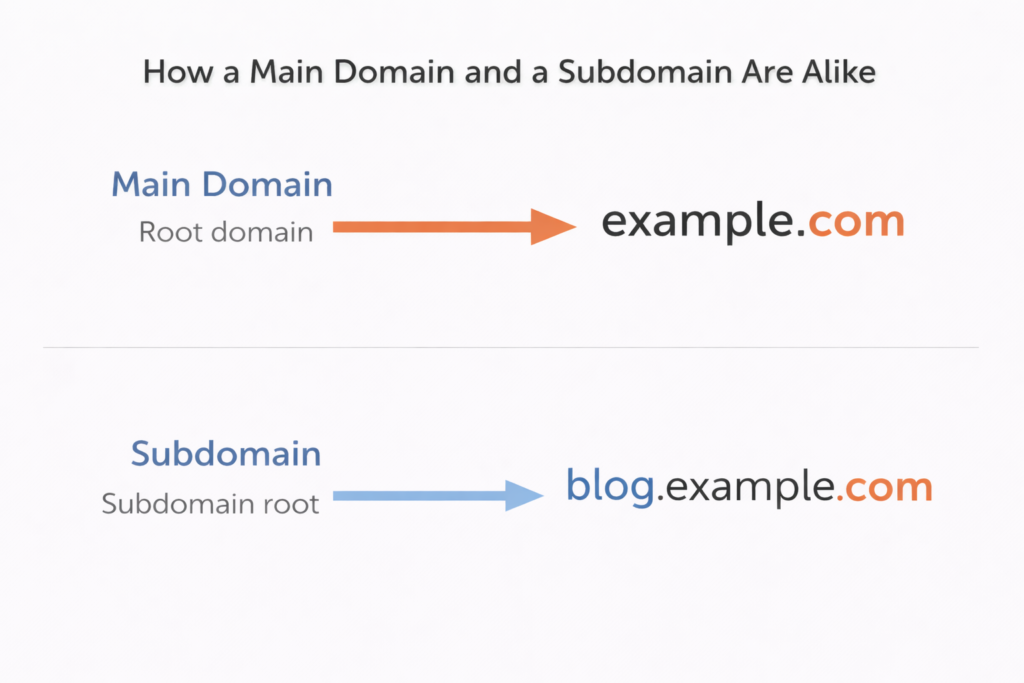
A subdomain is a part or an extension of your primary domain name. For example:
- Your Main Domain – example.com
- Your Subdomain – blog.example.com
Subdomains are treated as their own site(s) but still linked to your primary domain. Each subdomain can have its own content, separate hosting folder(s) and potentially its own SEO strategy.
Setting Up A Subdomain In Namecheap (DNS)
If your domains DNS is managed through Namecheap, you can easily set up your subdomain via the Namecheap dashboard.
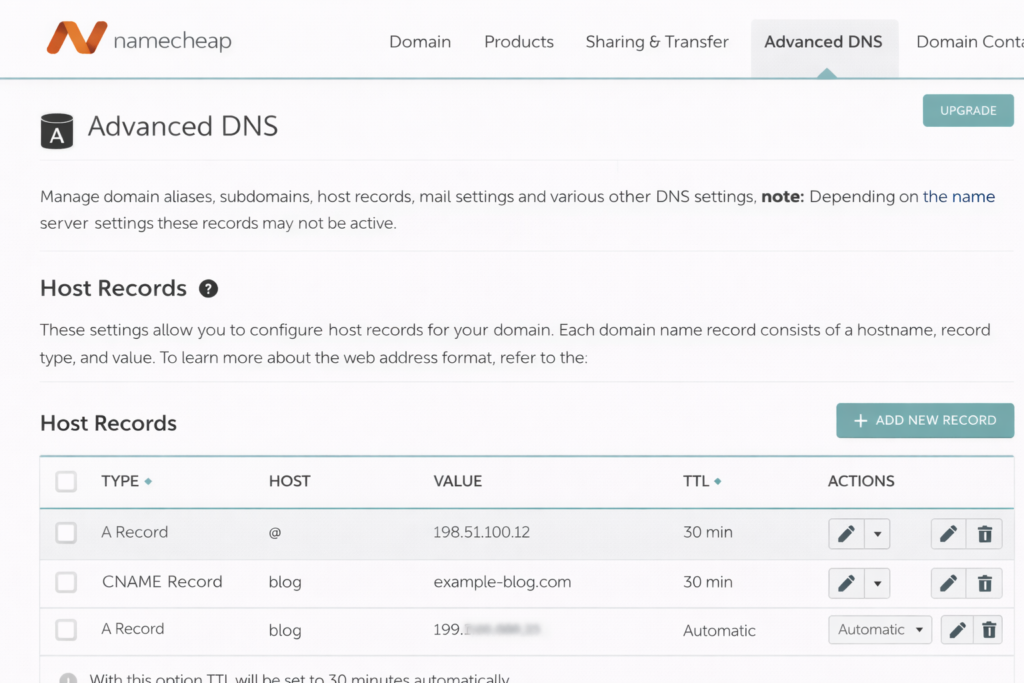
Step by Step (DNS Setup)
- Sign in to your Namecheap account
2. Click on Domain List > Manage
3. Select the Advanced DNS tab
4. Click Add New Record under Host Records
5. Select A Record
6. Enter the following:
- Host: subdomain name (ex. blog)
- Value: your server IP address
- TTL: Automatic
7. Save your changes
Typically, your new subdomain can be up and running within a few minutes, but some cases may take up to 24 hours.
Using cPanel to Create a Subdomain in Namecheap
If your hosting provider has a cPanel (like most shared hosting providers), then you can use cPanel to create your subdomain.
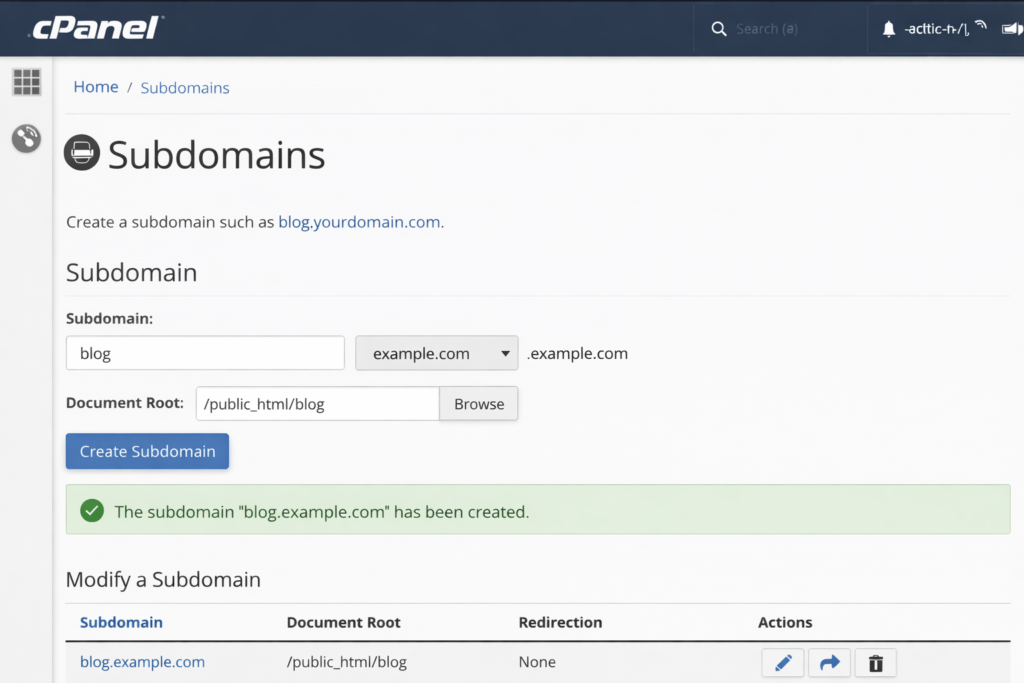
Steps to Creating a Subdomain via cPanel
- Go to cPanel.
- Go to the Domains section.
- Click on Subdomains.
- Enter in the subdomain.
- Select the main domain.
- Confirm or edit your Document Root.
- Click on Create.
cPanel will automatically:
- Create the DNS record
- Create the folder for the subdomain
- Link your new subdomain to your hosting account
Which Is Better, DNS, or cPanel?
| Method | Best For |
|---|---|
| Namecheap DNS | External hosting, VPS, custom servers |
| cPanel | Shared hosting with automatic setup |
Use cPanel if your domain and hosting are correctly connected; otherwise use DNS only if your hosting is done somewhere else.
SEO & Your Subdomain
It is critical that you understand how creating a subdomain in Namecheap could affect your SEO.
Key SEO Facts About Subdomains:
- Search engines view subdomains as independent websites
- Subdomains do not inherit the SEO authority of the parent/root domain
You must:
- Register Google Search Console separately.
- Build links to the subdomain individually.
- Optimize content on the subdomain individually.
When Can Subdomains Help With SEO?
Subdomains Are Commonly Used For:
- Blogs (blog.example.com)
- Regional Content (us.example.com)
- Web Apps (app.example.com)
- Support Portals (help.example.com)
Subdomain vs Subfolder (SEO Comparison)
| Feature | Subdomain | Subfolder |
|---|---|---|
| SEO Authority | Separate | Shared |
| Setup Complexity | Medium | Low |
| Use Case | Separate projects | Related content |
To Help With SEO Growth, Creating A Subfolder Is Usually The Preferred Option. However, If Your Use Of A Subdomain Creates Separation, It Is Still On The Table As A Valid Solution.
Common Issues When Creating A Subdomain
- DNS Has Not Propagated Yet.
- A Record Has The Wrong IP Assigned
- SSL Certificate Not Installed
- Wrong Document Root In CPanel.
If You Double Check The DNS Settings, Most Of These Are Corrected After Allowing Sufficient Time For DNS Propagation.
How to Create a Subdomain in Namecheap and Connect It to Hosting
When you wish to host a blog, store, app, or staging site under your main domain, creating a subdomain is a standard job. This guide tells you how to set up a subdomain under your Namecheap account and link it to hosting services through an easy-to-follow series of steps.
What Does a Subdomain Consist Of?
A subdomain consists of the main domain name plus an additional phrase. For example, the main domain name example.com has a subdomain name such as blog.example.com.
Common examples of sub domains are blogs, support sites, localized equivalents of your site (a country-specific website), and websites under development.
Before Creating a Subdomain
You will need the following before you can create a subdomain through Namecheap:
- A domain name = registered at Namecheap
- Access to your Namecheap account
- Hosting = IP address or hosting nameserver(s)
Step 1: Log into your Namecheap Account
- Go to Namecheap.com
- Click on Sign In
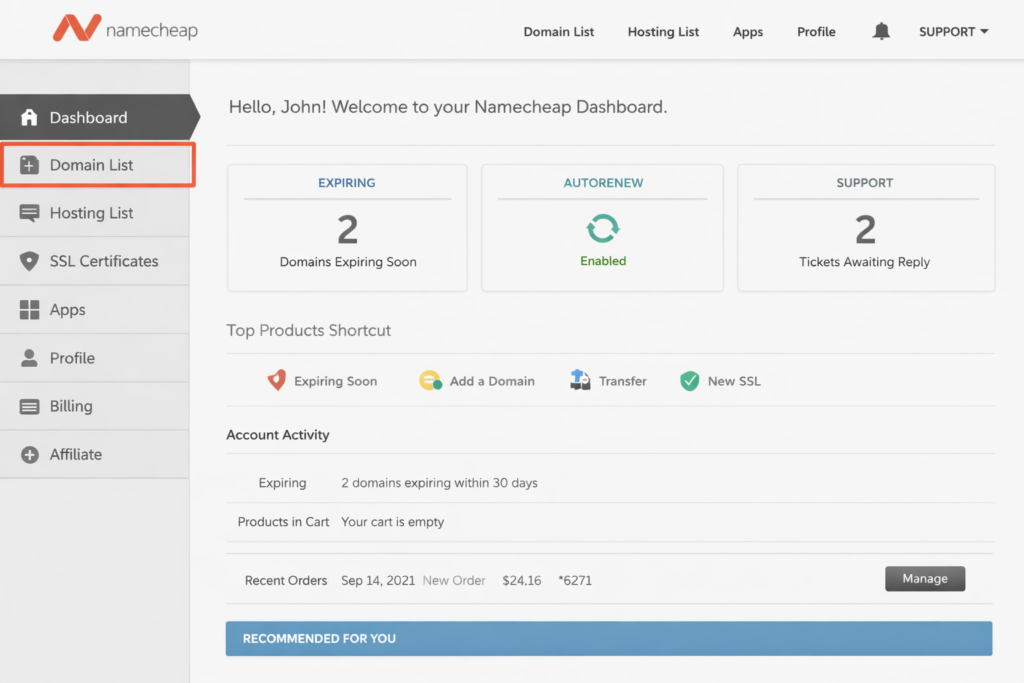
- Open Dashboard
- Select Domain List
Step 2: Get to Advanced DNS Settings
- Find your domain
- Click on Manage
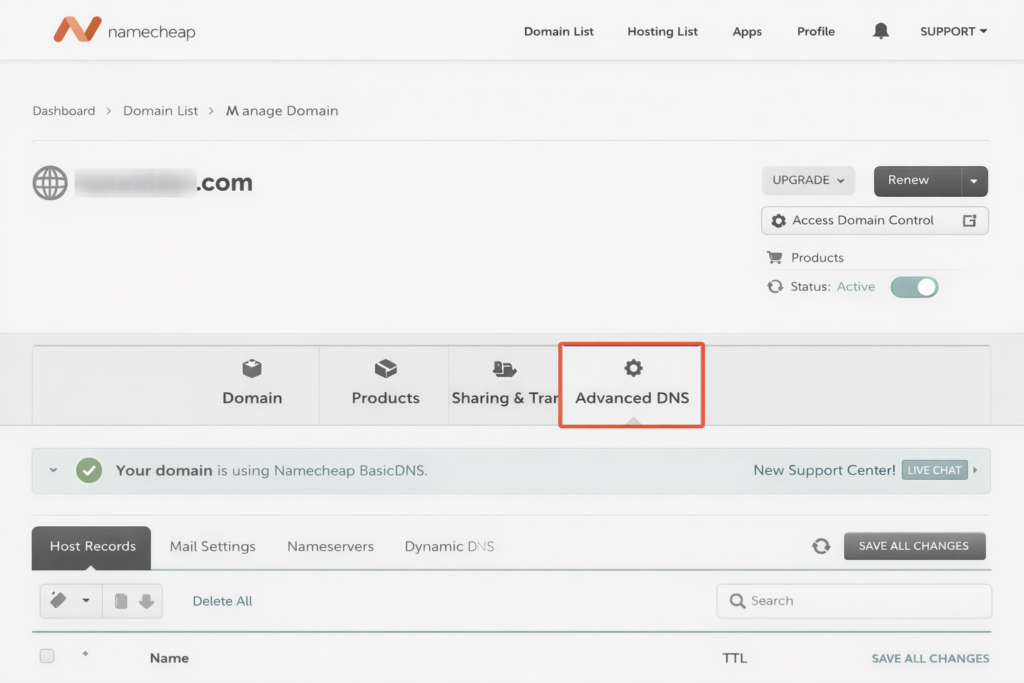
- Go to Advanced DNS tab
- This is where the DNS records are stored and where you will create a new subdomain for your main domain (domain registered at Namecheap).
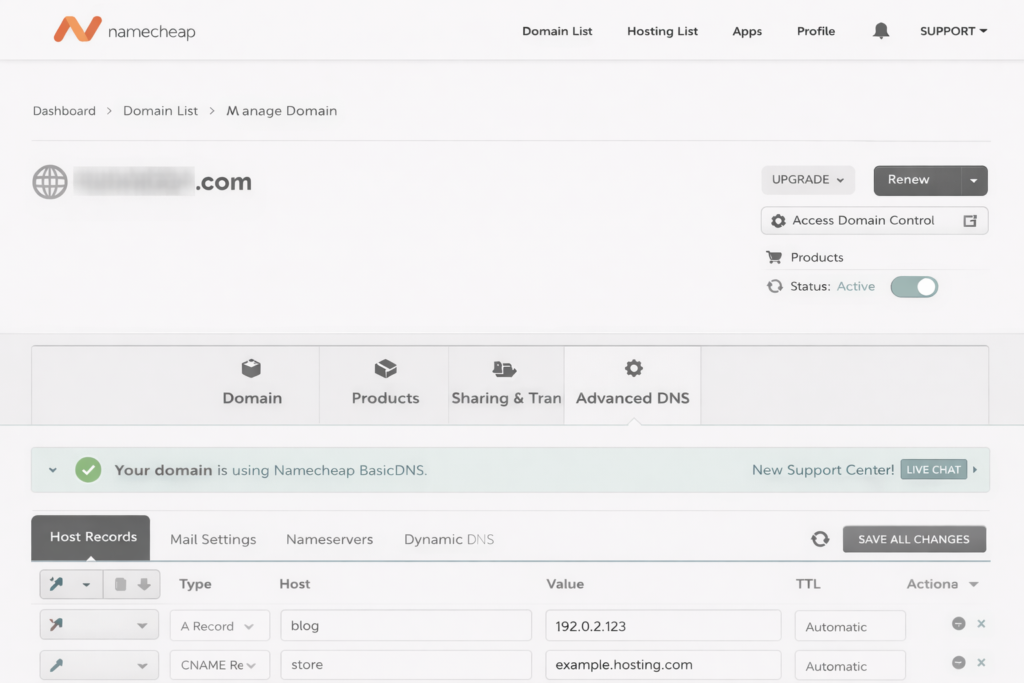
Step 3: Create the DNS Record for the Subdomain
In the Hosts section, select the “Add Record” option.
Option A: Connect Subdomain via IP (Common Practice)
- Type: A – Address
- Host: Enter the sub-domain name (example: blog)
- Value: Enter the Hosting Server IP
- TTL: Automatic
Once you have filled in the above inputs, select the “Save” button.
Option B: Connect Subdomain via Hostname
- Type: CNAME – Canonical Name
- Host: Enter the Subdomain Name
- Value: Enter the Host Provided Hostname (example: example.hosting.com)
- TTL: Automatic
Step 4: Create the Subdomain on the Hosting Platform
Just having a DNS record for the Subdomain alone will NOT WORK; You Must Also Create a Sub-domain within your Host
- If Hosting via cPanel:
- Login to cPanel
- Click on the “Domains” link (or Sub-domains link)
- Enter in the Subdomain
- Select the Document Root for the Subdomain
- Click “Create”
- If hosting via a different platform:
- Find a link on that platform for Domains/Sites and create a Subdomain from there.
Step 5: Wait for the DNS Records to Be Propagated
The propagation time of your changes can take between a few minutes to up to 24 hours to (fully) propagate around the World.
During this wait, you can expect:
- The subdomain to load sporadically
- A default page provided by your Host
All of the above is normal.
step 6: Test Your Subdomain
Go to your browser and point it to the URL of your new subdomain (i.e., subdomain.yourdomain.com).
If the subdomain was configured properly, you should see either:
- Your site
- A placeholder page from the hosting provider
- The contents of the folder that your new subdomain points to
Troubleshooting
If your subdomain does not resolve, ensure the following:
- That you entered the correct IP address or CNAME for the subdomain
- That your subdomain has been added to your hosting control panel
- Wait for the DNS changes to propagate if they have not yet been applied
- Clear your browser’s cache
When To Use A Subdomain
You can use a subdomain for any of your web properties (blogs, stores, support, testing, etc).
Conclusion
Though it might seem like a difficult task to set up subdomains at first, you may find out how easy it is as long as you follow the steps specified in this guide. If you follow these instructions, you will know how to set up a subdomain on Namecheap and to set it up on the server hosting the webpage, without making mistakes or going through several trial-and-errors.
Here are some things that you should remember:
- Correctly add DNS records in Namecheap.
- Set up subdomains through your web server control panel.
- Be patient while waiting for your DNS settings to update.
If you have correctly populated your DNS and web hosting control panels, then your new subdomain will be just like a separate website. Subdomains have given many people the opportunity to launch their own blogs or e-commerce sites or build separate test environments, allowing new and greater possibilities for organizing a site.
Now that you are finished creating and setting up your subdomain, you are ready to start creating and managing content for that website with confidence!