
How to Speed Up Your WordPress Website (Ultimate SEO Guide) 2026
A fast-loading WordPress website is no longer optional—it’s essential. Whether you’re running a blog, an eCommerce store, or a business site, speed directly impacts user experience, search engine rankings, and conversions. In fact, even a one-second delay in page load time can significantly reduce engagement and revenue.
In this comprehensive guide, you’ll learn proven strategies to optimize your WordPress website for speed, improve performance, and boost your chances of ranking among the top results on Google.
Why Speed Matters for Your WordPress Website
Before diving into optimization techniques, it’s important to understand why speed is critical.
- SEO Rankings: Google uses page speed as a ranking factor.
- User Experience: Faster sites reduce bounce rates.
- Conversions: Speed directly affects sales and lead generation.
- Mobile Performance: With mobile-first indexing, speed is even more crucial.
A slow WordPress website can drive users away before they even see your content.
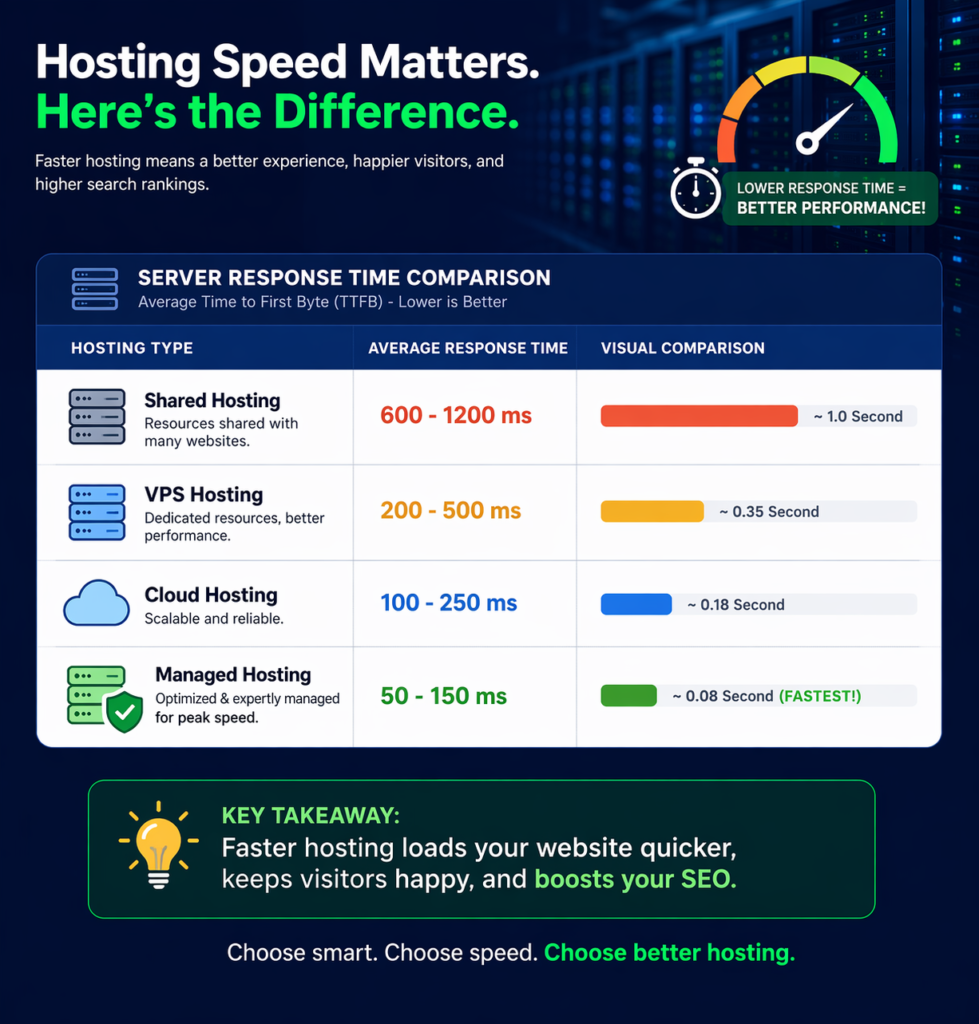
1. Choose a High-Performance Hosting Provider
Your hosting provider is the foundation of your site’s speed.
Cheap hosting often leads to:
- Slow server response times
- Frequent downtime
- Limited resources
Instead, consider managed WordPress hosting providers that specialize in performance optimization.
Popular options include:
- SiteGround
- Bluehost
- Kinsta
Pro Tip:
Look for features like SSD storage, built-in caching, and CDN integration.
2. Use a Lightweight WordPress Theme
Not all themes are optimized for speed. Many multipurpose themes come with unnecessary features that slow down your WordPress website.
What to look for:
- Minimal design
- Clean code
- Fast loading times
Recommended lightweight themes:
- Astra
- GeneratePress
- Neve
Avoid themes packed with animations, sliders, and heavy scripts unless absolutely necessary.
3. Install a Caching Plugin
Caching significantly reduces load time by storing static versions of your pages.
Top caching plugins:
- WP Rocket
- W3 Total Cache
- LiteSpeed Cache
Benefits of caching:
- Faster page loading
- Reduced server load
- Improved user experience
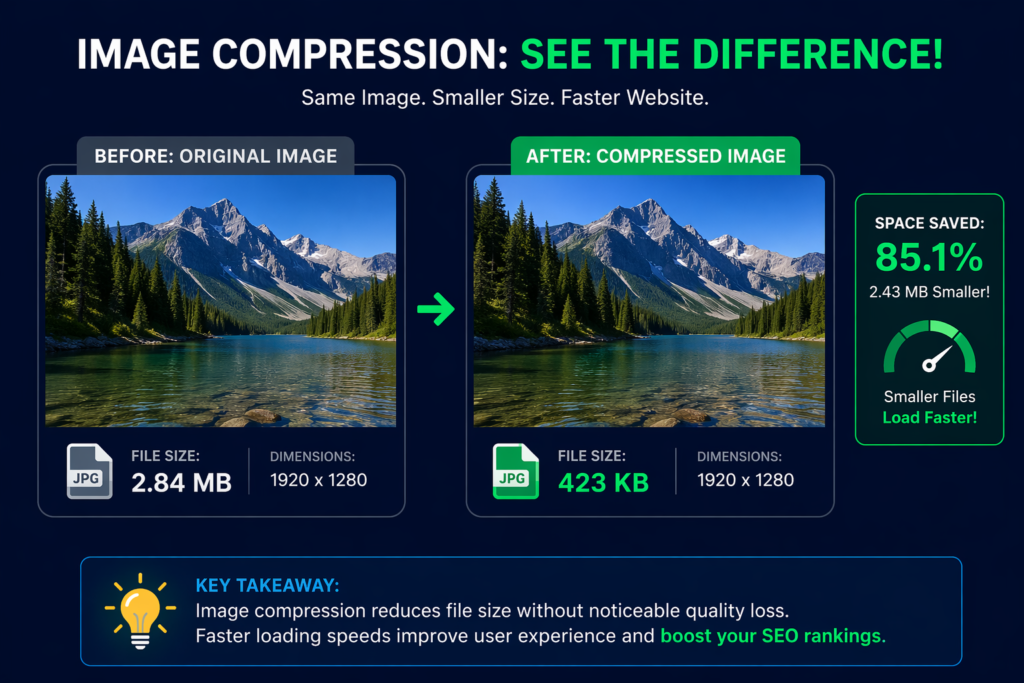
4. Optimize Images Without Losing Quality
Images are often the biggest contributors to slow load times.
Best practices:
- Compress images before uploading
- Use modern formats like WebP
- Resize images to proper dimensions
Recommended tools:
- Smush
- ShortPixel
Example:
A 3MB image can often be reduced to under 300KB without noticeable quality loss.
5. Enable a Content Delivery Network (CDN)
A CDN distributes your content across multiple servers worldwide, reducing load times for users regardless of location.
Popular CDN services:
- Cloudflare
- StackPath
Benefits:
- Faster global loading times
- Reduced latency
- Improved security
6. Minify CSS, JavaScript, and HTML
Minification removes unnecessary characters (spaces, comments, etc.) from code, making files smaller and faster to load.
Most caching plugins like WP Rocket already include this feature.
What gets improved:
- Reduced file sizes
- Faster rendering
- Better performance scores
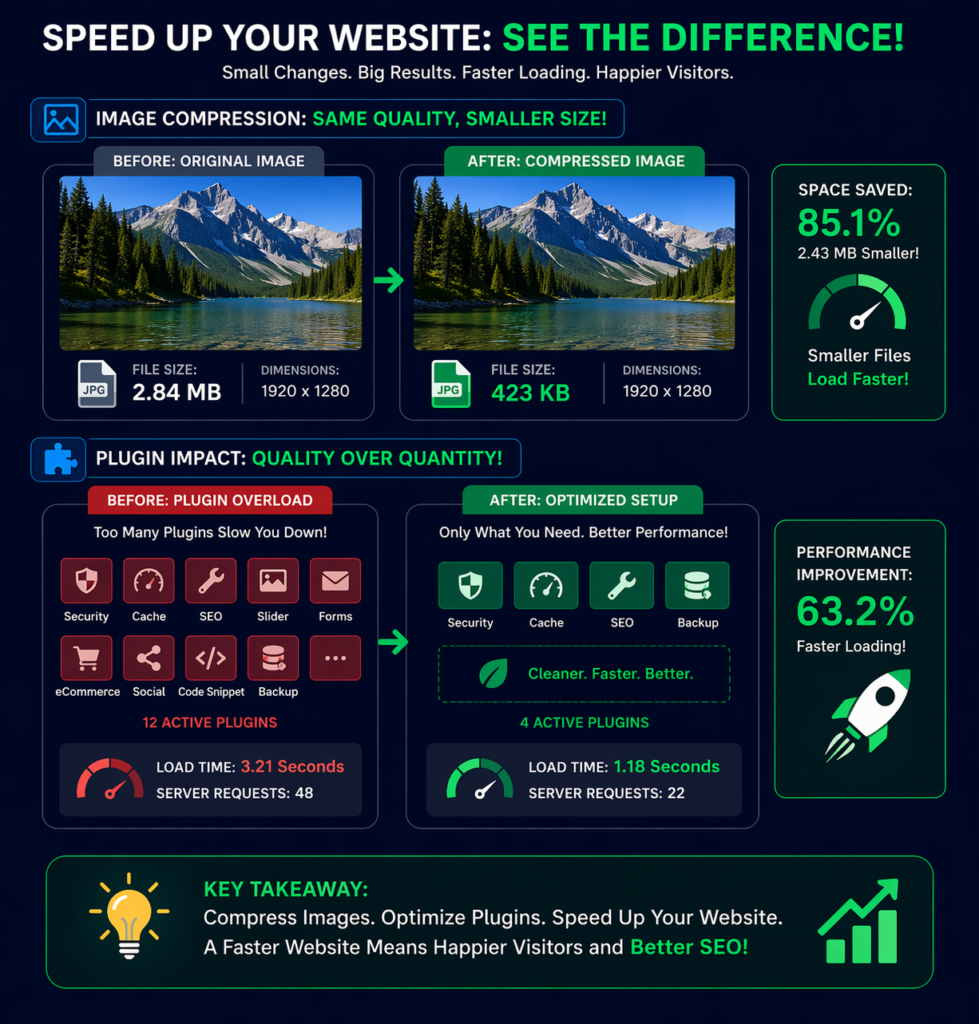
7. Reduce the Number of Plugins
Too many plugins can slow down your WordPress website, especially poorly coded ones.
Tips:
- Only install essential plugins
- Delete unused plugins
- Replace multiple plugins with one multi-functional plugin
Warning:
Not all plugins are created equal—some can dramatically impact performance.
8. Optimize Your Database
Over time, your database accumulates unnecessary data like revisions, spam comments, and drafts.
Solution:
Use optimization plugins like:
- WP-Optimize
Benefits:
- Faster database queries
- Reduced server load
- Improved site speed
9. Enable Lazy Loading
Lazy loading ensures images only load when they are visible on the screen.
Benefits:
- Faster initial load time
- Reduced bandwidth usage
- Improved user experience
Most modern WordPress versions support lazy loading by default, or you can enable it via plugins.
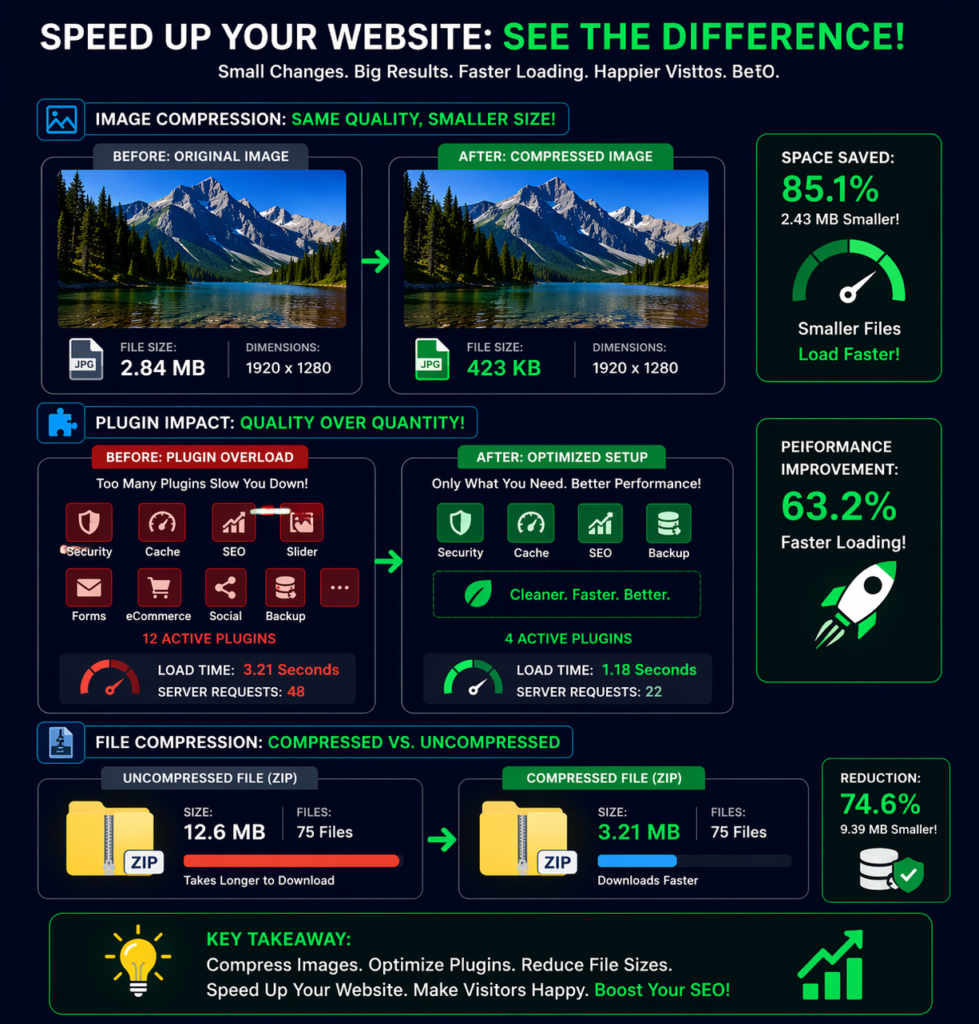
10. Use GZIP Compression
GZIP compression reduces file sizes before sending them to users’ browsers.
Result:
- Faster data transfer
- Improved load speed
Many hosting providers and caching plugins enable this automatically.
11. Optimize Fonts and External Scripts
External scripts like Google Fonts, ads, and tracking codes can slow down your site.
Tips:
- Limit font variations
- Host fonts locally
- Reduce third-party scripts
12. Enable Browser Caching
Browser caching stores static files on users’ devices so they don’t need to reload everything on each visit.
Benefits:
- Faster repeat visits
- Reduced server load
Most caching plugins handle this automatically.
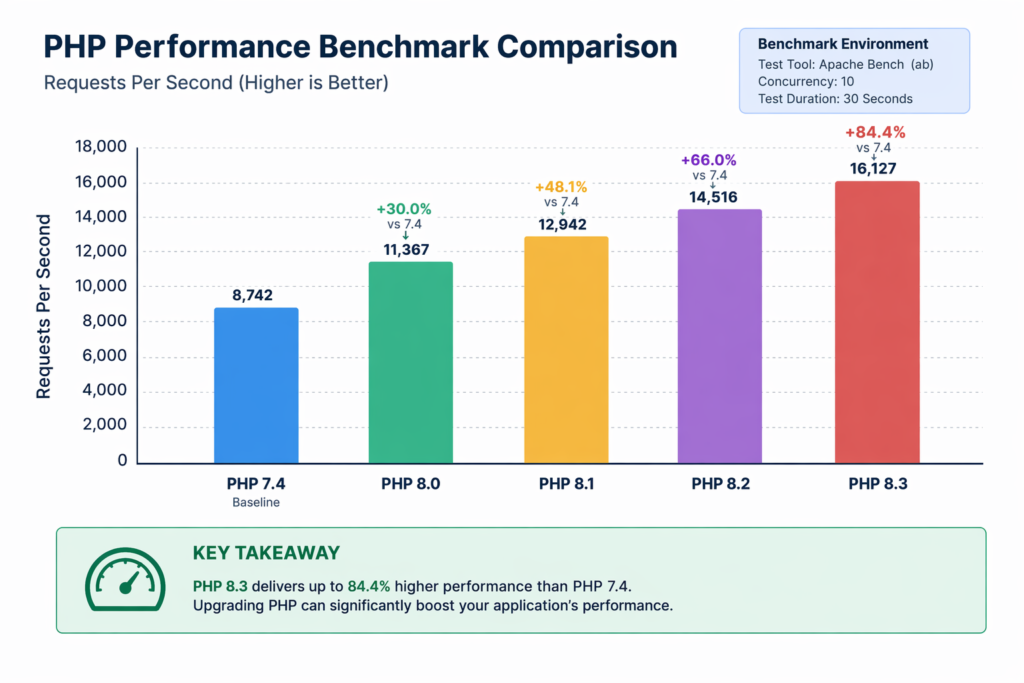
13. Use the Latest PHP Version
Updating PHP can significantly improve your WordPress website performance.
Example:
PHP 8.x is much faster than older versions like 7.x.
How to update:
- Check with your hosting provider
- Use control panel tools
14. Monitor Performance Regularly
You can’t improve what you don’t measure.
Use tools like:
- Google PageSpeed Insights
- GTmetrix
Key metrics:
- Largest Contentful Paint (LCP)
- First Input Delay (FID)
- Time to First Byte (TTFB)
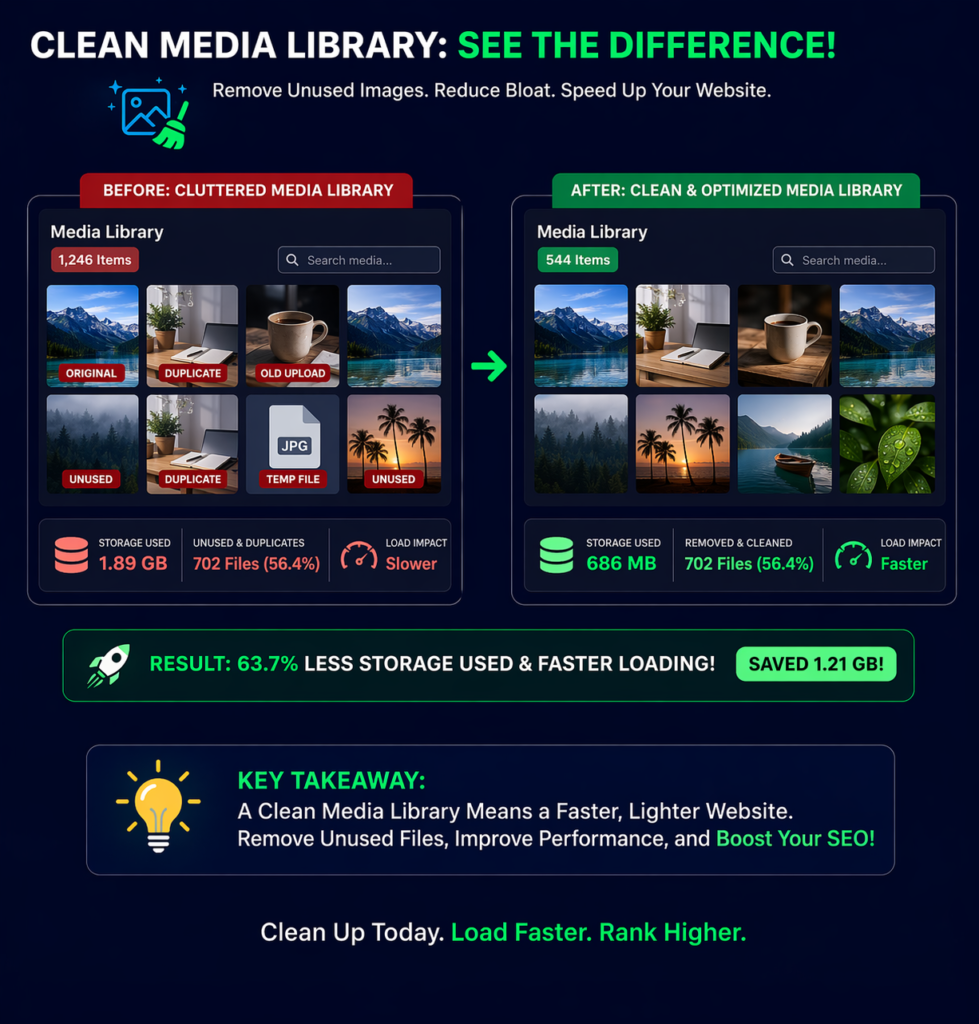
15. Remove Unused Media and Files
Old images, themes, and backups can clutter your site and slow it down.
Steps:
- Delete unused media files
- Remove inactive themes
- Clean old backups
Final Thoughts
Speed optimization is not a one-time task—it’s an ongoing process. By implementing the strategies outlined above, you can significantly improve your WordPress website performance, enhance user experience, and boost your SEO rankings.